















How to Sync Zendesk with Salesforce: A Two-Way Integration Guide
Support runs in Zendesk and sales runs in Salesforce, and without a sync the two drift: duplicate contacts, stale ticket status, and agents re-checking the CRM by hand. This guide shows what to sync between Zendesk and Salesforce, how a two-way sync keeps contacts, accounts, and cases in step, and how to set it up without duplicates or loops.
- Author
- Ignacio Malpartida · GTM Engineer
- Published
- Updated
- Read time
- 9 min read

Support lives in Zendesk and sales lives in Salesforce, and they are looking at the same customers from two sides. An agent working a ticket needs the account owner, the renewal date, and the plan tier that sit in Salesforce. An account executive needs to know their customer has three open tickets before they push a renewal. When the two systems are not synced, each team keeps its own half of the picture and fills the gaps by hand.
The fix is a two-way sync between the two. Match the records once, map the fields that both teams rely on, and let a sync layer keep them in step so a change in either tool reaches the other in real time. This guide covers what to sync, how the two-way sync works, and how to set it up without creating duplicates or update loops.
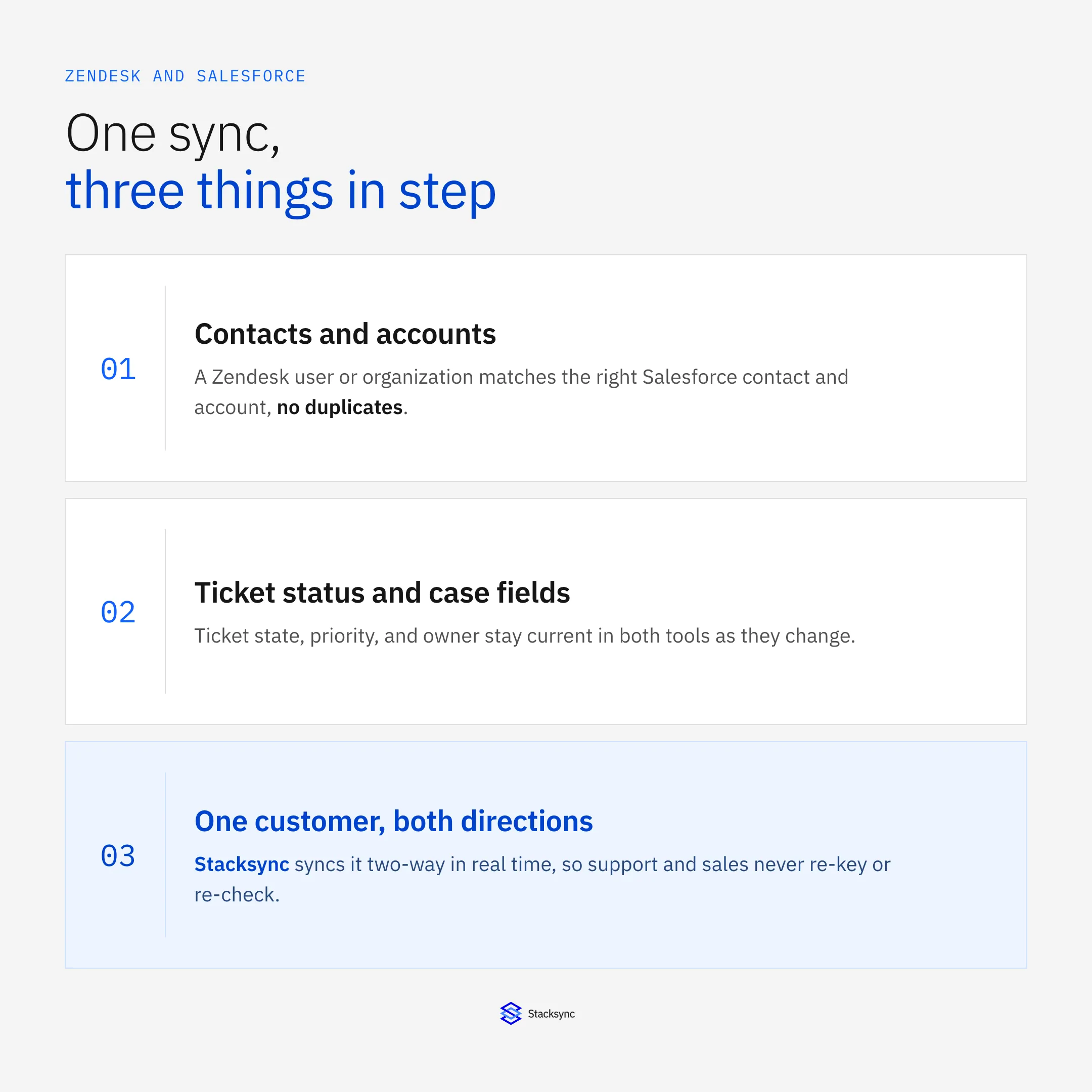
Done properly, the sync keeps three things in step: contacts and accounts, ticket status and case fields, and the single view of the customer both teams work from. Get those right and support and sales stop re-keying and re-checking each other's tools.
Why Zendesk and Salesforce drift apart
The two systems drift because they are edited independently all day. Support creates and updates tickets in Zendesk; sales edits accounts and contacts in Salesforce. Nothing connects the two edits, so the same customer ends up with a slightly different story in each tool: a contact with one email in Zendesk and another in Salesforce, a ticket marked solved that the linked case still shows open, an account whose owner changed last week that support never saw.
Teams paper over it with manual work. Someone exports a report and reconciles it, an agent alt-tabs to the CRM on every ticket, or a one-way connector copies contacts across on a schedule and quietly duplicates half of them. None of it holds up under volume, and the cost is real: a customer told something out of date, or a renewal worked without knowing about an escalation.
| Without a sync | What it causes |
|---|---|
| Contacts edited in both tools | Duplicate and conflicting records |
| Ticket status not reflected in the case | Sales works from a stale support picture |
| Account changes never reach Zendesk | Agents miss owner, tier, and renewal context |
| Manual reconciliation and tab-switching | Slow, error-prone, and never current |
What happens when Zendesk and Salesforce are edited independently with nothing keeping them in step.
What to sync: contacts, accounts, tickets, and cases
Start by deciding which objects and fields belong in the sync. The mapping is straightforward because the two systems model the same ideas: a Zendesk user is a Salesforce contact, a Zendesk organization is an account, and a Zendesk ticket is a case. Within each, you sync the fields both teams act on and leave internal-only fields local.
| Zendesk | Salesforce | What syncs |
|---|---|---|
| User | Contact | Name, email, phone, matched on email |
| Organization | Account | Company, domain, tier; matched on domain |
| Ticket | Case | Status, priority, subject, owner, both ways |
| Custom fields | Custom fields | Plan, renewal date, region, mapped per field |
A typical Zendesk to Salesforce object and field map. Match keys keep records paired; custom fields map one to one.
The match keys matter as much as the fields. Email pairs a Zendesk user with the right Salesforce contact, and company domain pairs an organization with the right account, so updates land on the existing record instead of spawning a duplicate. Set those before anything else.
How the two-way sync works
With the objects mapped, a sync engine sits between Zendesk and Salesforce and keeps the paired records in step. It matches records on the keys you set, maps the fields across the two schemas, and applies each change to the other side. Neither team logs into the other's tool; both keep working where they already work.
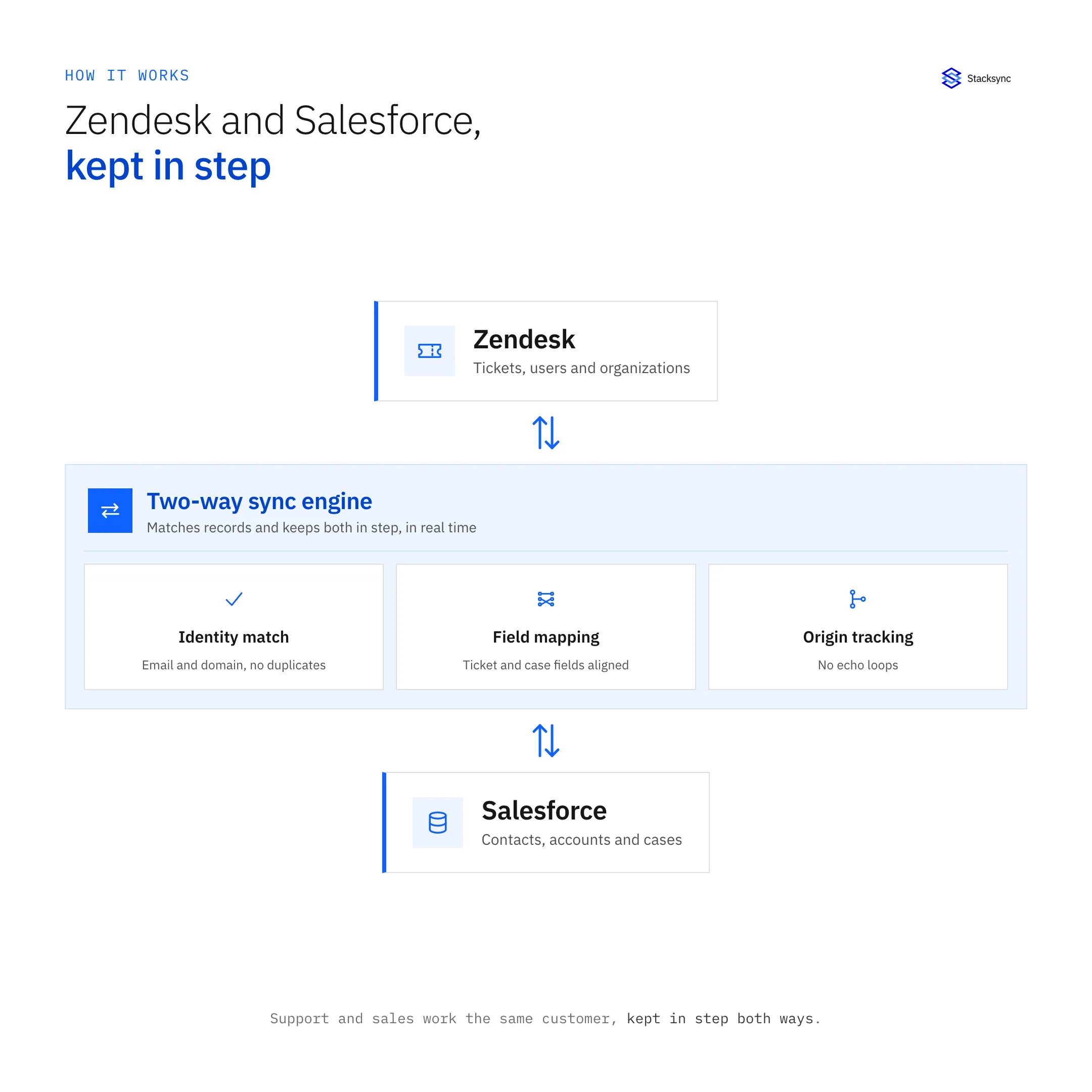
Three details make it trustworthy. Identity match pairs each Zendesk record with the right Salesforce one on email and domain, so nothing duplicates. Field mapping translates status, priority, and custom fields between the two shapes. Origin tracking tags every write as coming from the sync, so when the other system reports the change back it is recognized and not resent, which is what stops a single edit from looping between the tools.
A change crossing both ways
It helps to follow one change through the sync. Say an agent moves a ticket to solved in Zendesk. The engine picks up the change, finds the linked Salesforce case, and updates it, along with any mapped fields, then confirms without writing an echo back to Zendesk. The same path runs in reverse when sales changes an account owner or renewal date and it needs to appear on the ticket.
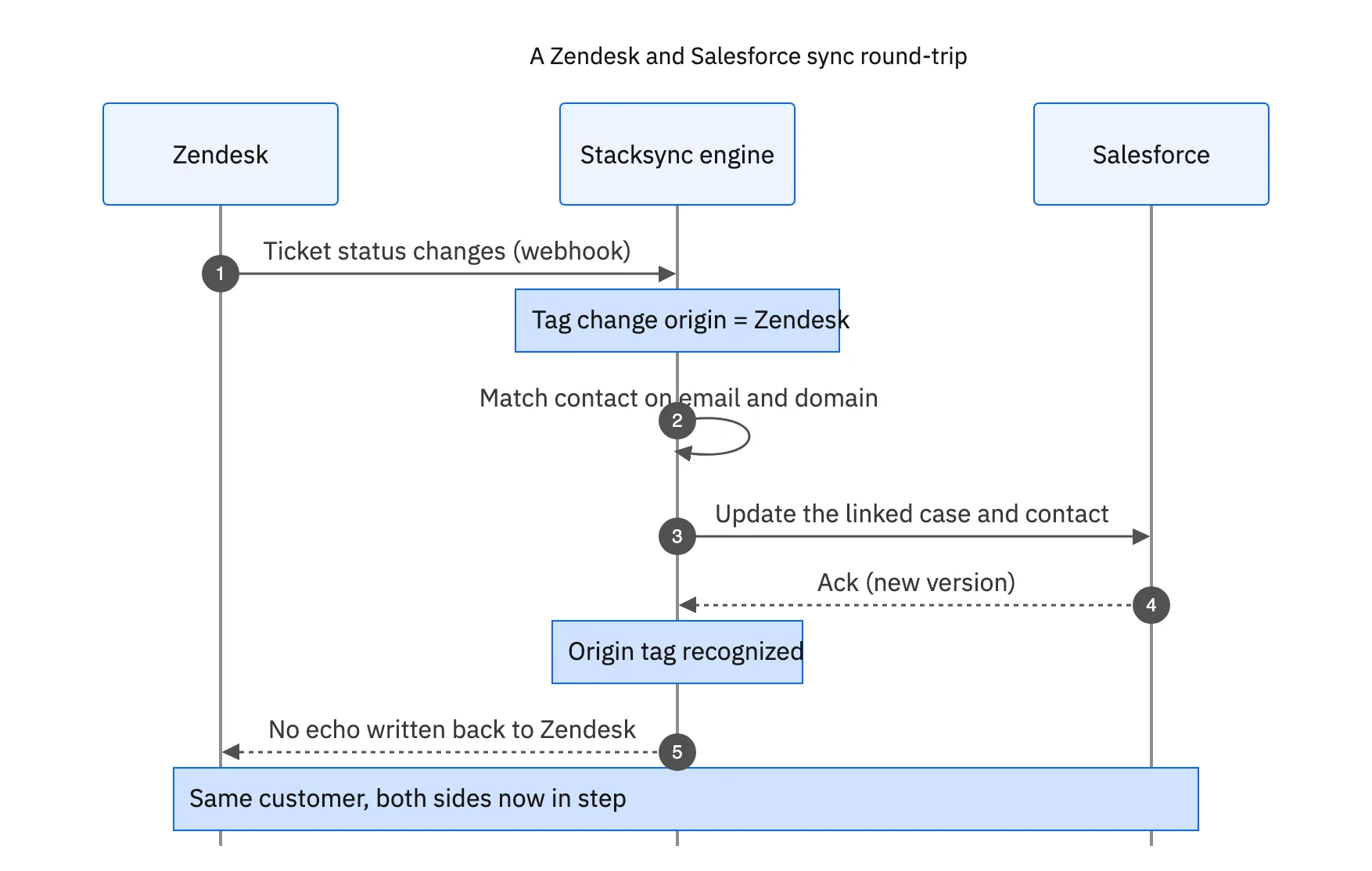
Because the engine reacts to changes in real time rather than on a schedule, the update lands on the other side in seconds. Support and sales are never more than a moment out of step, and neither team has to check the other's tool to trust what they see.
Setting up the Zendesk and Salesforce sync
The setup is a short sequence, and after it the sync runs unattended.
- 01Connect both systemsAuthorize Zendesk and Salesforce to the sync layer; no login into either tool from the other.
- 02Pick the match keysUse email for contacts and company domain for accounts so records pair instead of duplicating.
- 03Map the objects and fieldsMap users to contacts, organizations to accounts, and tickets to cases, including the custom fields both teams use.
- 04Set direction and conflict rulesConfigure two-way sync with field-level direction controls, identify the authoritative system for owned fields, and decide how conflicts resolve when both sides edit a shared field.
- 05Run an initial match, then turn on real-time syncPair existing records first, then enable the two-way sync with origin tracking so updates flow both ways without looping.
This same pattern is how any pair joins a Zendesk integration layer. If you are connecting more than these two, see an enterprise-grade iPaaS for Zendesk, and if you want agents to see this synced context without leaving a ticket, see full customer context in the helpdesk.

Apply this in household consumables: return claim and receiving count
Shared helpdesk and CRM context is the starting point for a household-product return, not proof of its operational completion. The linked workflow follows the request into warehouse condition review and finance approval, with each accepted outcome tied to the original sold pack.
| Record to reconcile | Responsible owner | Rule to preserve |
|---|---|---|
| Return claim | Support | Record original order, affected item, reported condition, quantity, unit, and requested remedy. |
| Receiving count | Warehouse | Own the physical items received and their observed condition. |
| Disposition decision | Authorized operations owner | Approve the treatment of damaged, unsellable, or acceptable goods. |
An exception to plan for: Carton contains mixed products. Count and identify actual items before disposition or financial reconciliation. Acceptance check for the pilot: unsellable goods cannot become available stock through ticket closure.
The household consumables hub connects the broader operating context. These guides develop the specific record mappings and decisions for this application:
Bringing it together
Syncing Zendesk and Salesforce is about giving support and sales one current view of the same customer. Match contacts and accounts on a stable key so nothing duplicates, map ticket status and case fields both ways, and use origin tracking so updates do not loop. Then a ticket resolved in Zendesk and an account changed in Salesforce both show up where the other team works, in seconds.
To connect Zendesk and Salesforce with real-time two-way sync, see how two-way sync works or book a demo. To route and escalate tickets on that live account data once it is synced, see auto-routing support tickets.

FAQ
Frequently asked questions








Explore these integrations and topics
- connectorSalesforce integrations
- connectorZendesk integrations
- platformTwo-way sync
- platformCRM synchronization
- Two-way sync guidesUnderstand two-way sync, record matching, field ownership, and production readiness.
- CRM synchronization guidesConnect customer records across sales, marketing, and operational systems.
Related articles