














Coordinate Supplier Recalls Across Inventory, CRM, and Support
Supplier recall coordination should start from the quality manager’s approved notice and affected lot numbers.
- Author
- Stacksync · App tips writer
- Published
- Read time
- 6 min read

Begin with an approved scope and exact lot identifiers
Supplier recall coordination should start from the quality manager’s approved notice and affected lot numbers. Trace those lots through stock and deliveries in NetSuite and Postgres, then identify the affected facilities and contacts in Salesforce. The automation coordinates an approved operational process; it does not determine which products require a recall or write independent clinical instructions.
Record the notice version, product identifiers, lot identifiers, and any location-specific scope supplied by quality. Match product and lot together where lot numbers are not globally unique. Exclude unaffected lots even when they share a product name or were delivered in the same shipment.
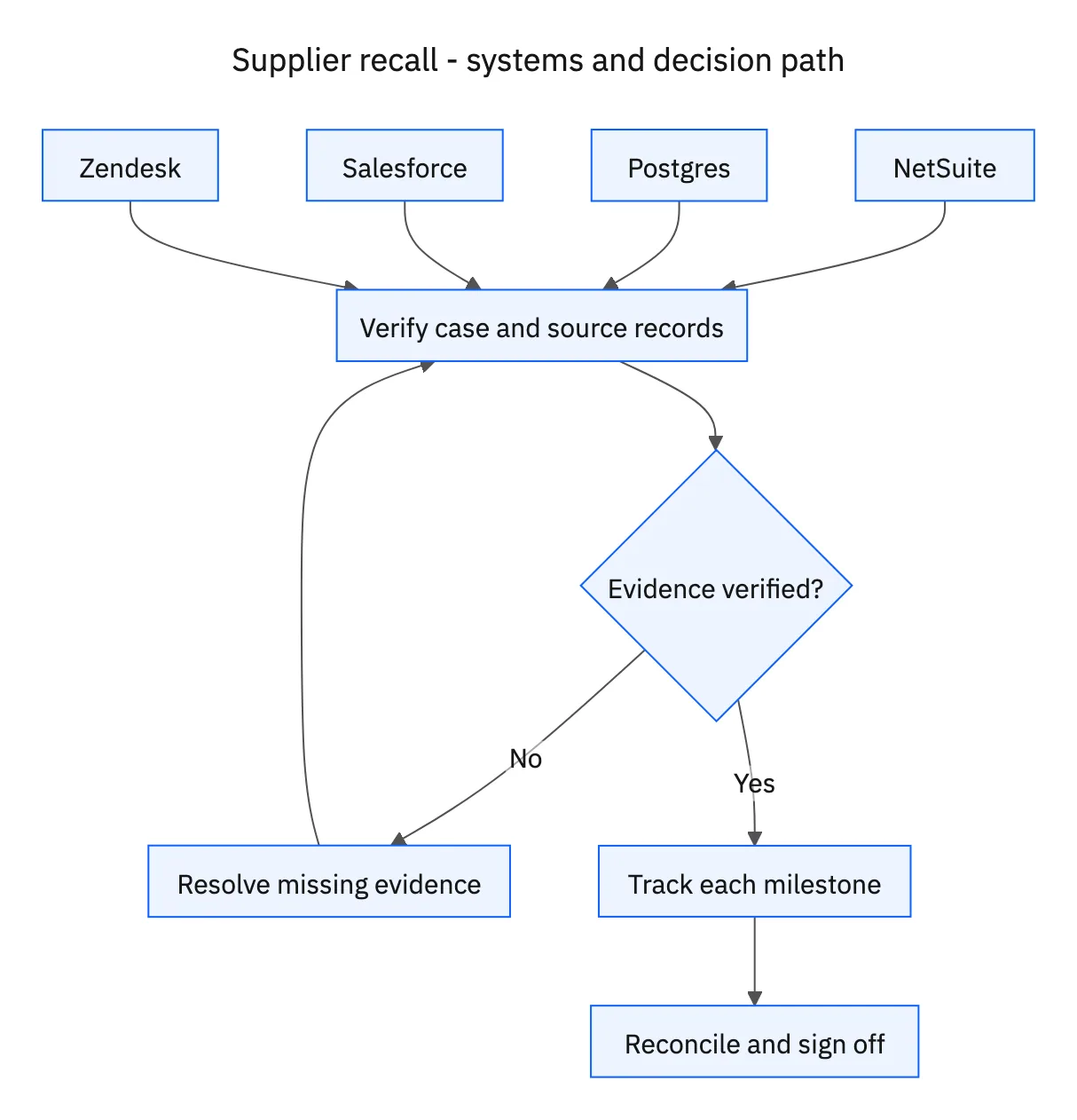
Systems and prerequisites
This is a workflow design to configure with Stacksync Genies and your existing systems. Connecting an application does not by itself establish the permissions, record mappings, approval routing, or operational process described here. Before enabling the job, confirm which records the Genie can read, which actions it can take, and who receives clarification or approval requests.
| System or owner | Evidence and responsibility |
|---|---|
| Quality manager | Approved recall notice, affected lot list, instruction approval, replacement approval, and final sign-off. |
| NetSuite | Affected stock, lot inventory, deliveries, and approved replacements. |
| Postgres | Delivery and lot-trace records across facilities. |
| Salesforce | Affected facility identities and approved contacts. |
| Zendesk | Notifications, acknowledgments, quarantine confirmations, returns, and follow-up. |
Required context for this workflow design.
Prepare facility-specific evidence and instructions
For each affected facility, assemble the traced quantities, relevant delivery references, current known stock, contact record, and any gaps requiring reconciliation. Prepare instructions based on the approved notice and that facility’s actual affected deliveries. Route the location-specific communication to the quality manager for approval before notification.
Use Zendesk to keep notification, acknowledgment, quarantine confirmation, and return request as distinct milestones. A successful message post does not prove the facility received or acted on it. Follow up on missing acknowledgments using the approved contact and follow-up process, retaining the case history so another team member can continue the coordination.
Reconcile quantities and retain quality ownership
Arrange replacement orders only after approval and link them to the affected case and quantities. Do not interpret an urgent request or a quarantine acknowledgment as replacement authorization. Check prior replacement actions before creating more supply for the same recalled units.
Reconcile traced quantities against the operation’s defined dispositions, such as confirmed quarantine, returned units, or another documented quality-approved outcome. Keep unresolved balances visible. The recall remains open until the quantities are reconciled and the quality manager signs off. Notification coverage alone is not sufficient evidence of completion.
A five-step operating sequence
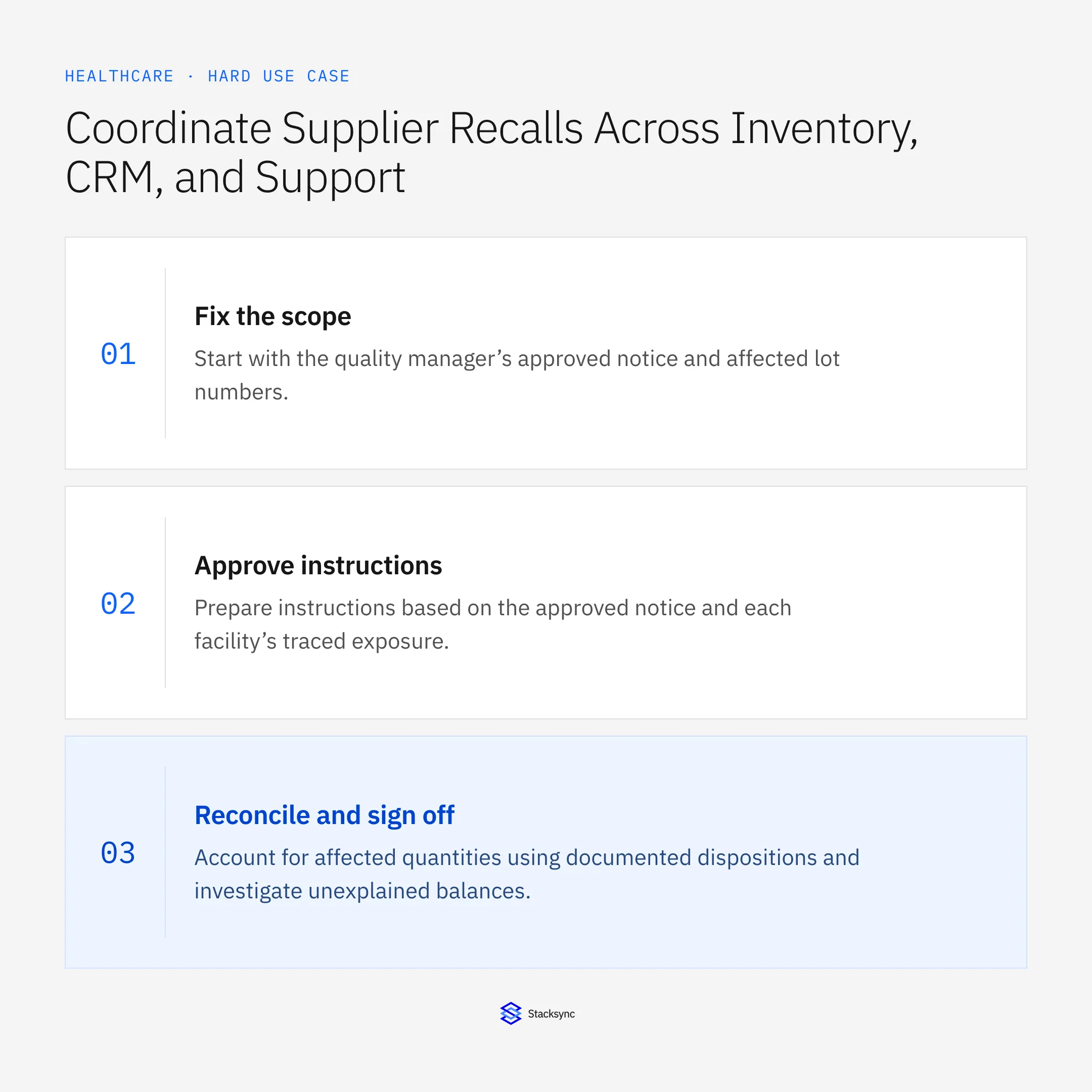
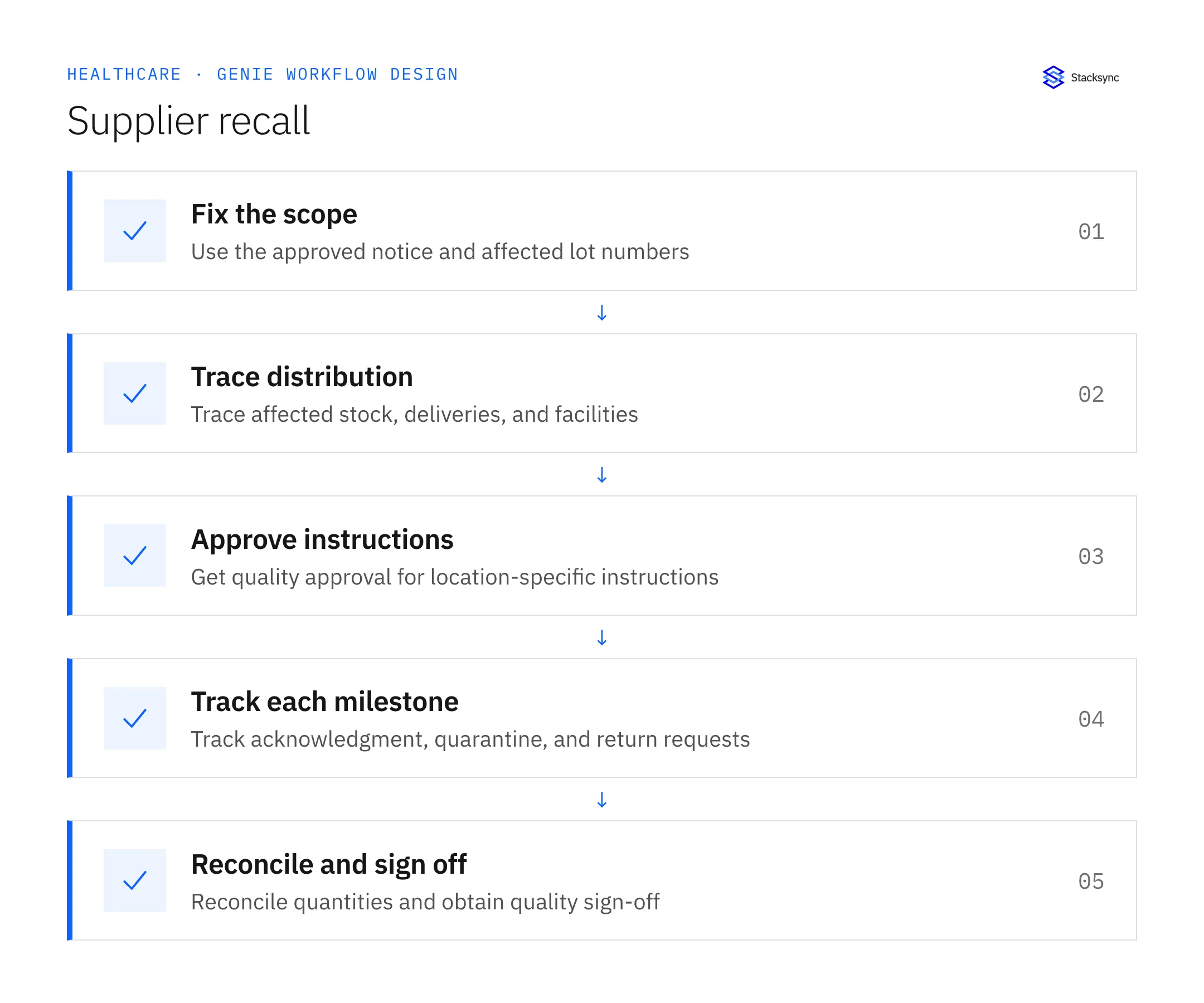
- 01Fix the scopeStart with the quality manager’s approved notice and affected lot numbers. Preserve product-and-lot identity and notice version. Do not extend the scope to unaffected lots because they share a product name or shipment.
- 02Trace distributionReconcile NetSuite stock and Postgres delivery movements to identify affected facilities and quantities. Use Salesforce for the corresponding facility contacts. Surface missing movements or ambiguous links before generating location-specific quantities.
- 03Approve instructionsPrepare instructions based on the approved notice and each facility’s traced exposure. Obtain the quality manager’s approval before notification. Track the instruction version so a later revision does not silently replace what a facility previously acknowledged.
- 04Track each milestoneUse Zendesk to follow notification, acknowledgment, quarantine confirmation, and return requests separately. Follow up with nonresponders under the approved process. Arrange replacement orders only after approval and check prior actions for the same affected units.
- 05Reconcile and sign offAccount for affected quantities using documented dispositions and investigate unexplained balances. Prepare the closeout packet for quality review. Keep the recall open until quantities reconcile and the quality manager records sign-off, even if all messages were delivered.
Illustrative workflow example
The approved notice covers lot R-27. One facility received twelve affected units and eight units from an unaffected lot in the same shipment. Its proposed instructions identify only the twelve affected units and wait for quality approval before notification.
This example uses fictional records to show the decision logic. It is not a customer case study or a claim of measured results. In a live case, retain the actual record IDs and evidence behind each statement, and replace all illustrative quantities or timing assumptions with the approved operational inputs.
What the handoff should contain
A facility-and-lot recall ledger linked to approved notice versions, Zendesk notification milestones, reconciled dispositions, replacement approvals, and quality-manager closeout sign-off.
Keep the evidence reference, observation time, current owner, and outstanding decision with the case. A colleague taking over should be able to distinguish a proposal from a confirmed result without reading every previous message. If a source value changes while the case is waiting, recheck the affected decision before proceeding.
Approval and completion checklist
- Start only with a quality-manager-approved notice and affected lot list.
- Trace exact affected lots and exclude unaffected products or lots.
- Approve location-specific instructions and any replacements before action.
- Track acknowledgments, quarantine, returns, and follow-ups in Zendesk.
- Keep the recall open until quantities reconcile and the quality manager signs off.

Validate the job before enabling it
Start with a small reviewed set of cases from the systems above. Include a complete case, an ambiguous match, a missing source record, and an interrupted action where the result is uncertain. Use a draft or test environment for validation and compare the output with the source records before allowing the configured production actions.
For this job, the most important checks are start only with a quality-manager-approved notice and affected lot list. Keep the recall open until quantities reconcile and the quality manager signs off. Record the expected result before the trial, then compare both the proposed action and the final evidence. A fluent message is not a passing result if it skips one of these conditions.
- Affected facilities with approved instructions and acknowledgment
- Affected quantities with documented reconciled disposition
- Recalls closed only with quality-manager sign-off
Use these as operating measures, not promised performance improvements. Establish the current baseline and review exceptions with the team that owns the process. Investigate an increase in incorrect matches, unauthorized actions, or premature closure before expanding the job’s scope.
Give your Genie a job description
Copy the job description below. It preserves the scope and decision boundaries of this use case. Configure the referenced systems, record relationships, policies, and approval owners in your workspace before enabling the job.
Paste this into “Give your Genie a job description.” Explore Stacksync Genies.
Implementation references
These first-party references document the underlying records and interfaces. The cross-system sequence, approvals, and completion rules in this article are a proposed operational configuration; validate them against your connected workspace before enabling it.

FAQ
Frequently asked questions
Explore these integrations and topics
Related articles