

















Acumatica to Salesforce Sales Order Sync: Mapping, Status, and Backfill
A bottom-funnel guide to syncing Acumatica sales orders into Salesforce: what maps straight across versus what needs translating, how order statuses map, keeping Acumatica the authoritative source for sales orders, backfilling historical orders, and staying inside Salesforce API limits.
- Author
- Ignacio Malpartida · GTM Engineer
- Published
- Updated
- Read time
- 9 min read

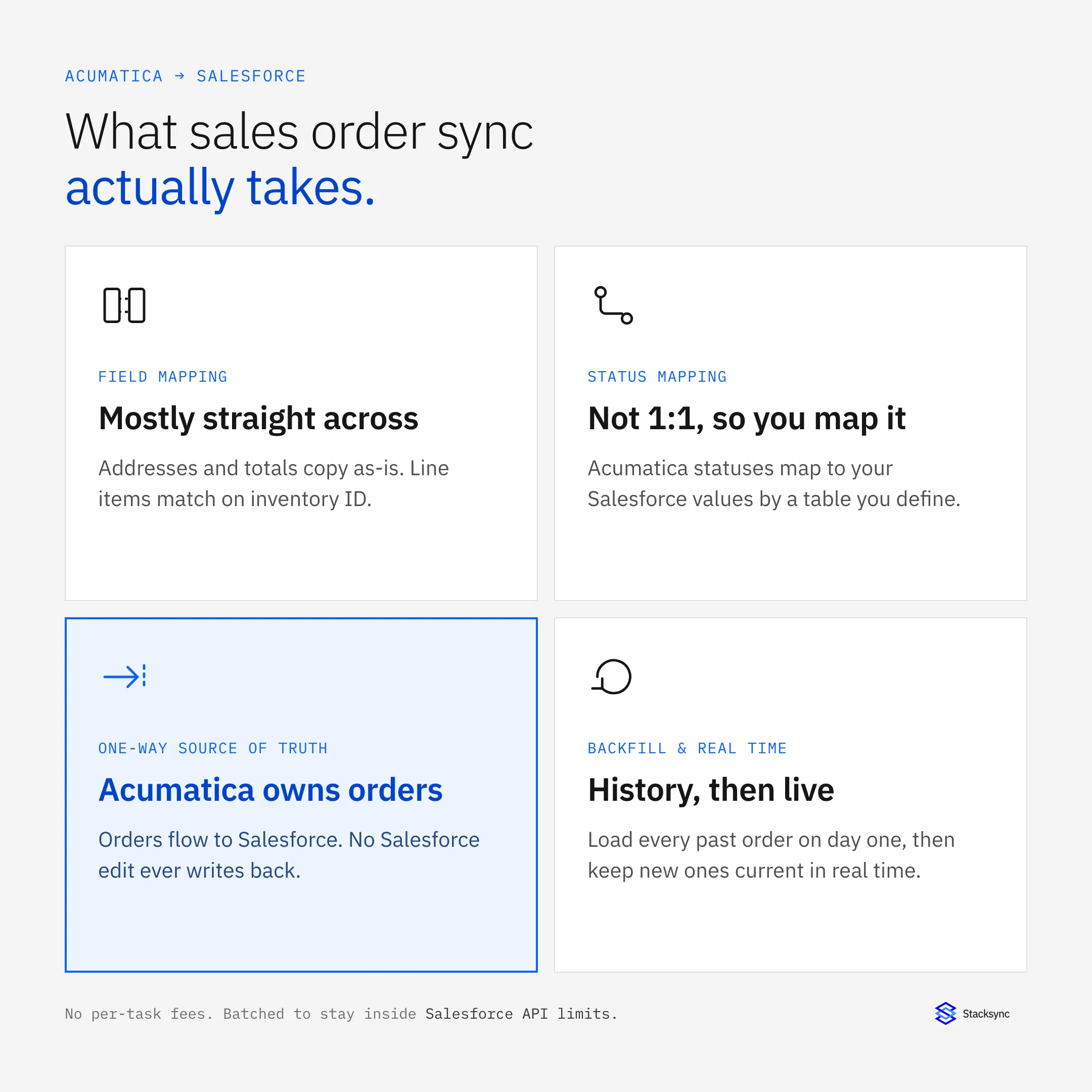
Syncing Acumatica sales orders into Salesforce is a common first integration: orders and fulfillment live in Acumatica, sales works in Salesforce, and reps need to see order status without opening the ERP. The concept is simple, but teams evaluating it ask the same concrete questions, because the details decide whether the sync is trustworthy.
Does the data map straight across or does it need transformation? How do Acumatica order statuses line up with Salesforce, since they are not the same values? Can a custom field like the Acumatica Note ID carry over? How do you keep Acumatica the authoritative source for sales orders so no order gets overwritten? How do you backfill the orders that already exist? And how do you avoid the Salesforce API limits and per-task costs that catch teams on tools like Zapier? This guide answers each one.
The setup below assumes a managed sync platform such as Stacksync connecting Acumatica and Salesforce. For the broader Acumatica to CRM picture across both Salesforce and HubSpot, see the Acumatica to Salesforce and HubSpot integration guide. This post goes deep on the sales order sync itself.
Field mapping: straight across, or transformed?
The most common question is whether Acumatica data needs transformation on the way into Salesforce or whether it is the same content flowing straight across. For a sales order, most fields are a direct copy. Shipping address, quantities, and line totals move field for field with no reshaping. Two things do need handling: matching records to the right target, and translating values that differ between the systems.
The key detail is the match key. Line items match on the Acumatica inventory ID, so each order line links to the correct Salesforce product instead of guessing by name. At the order and customer level, a stable identifier (the Acumatica customer ID or Note ID) is stored as a Salesforce external ID so the same record is never created twice.
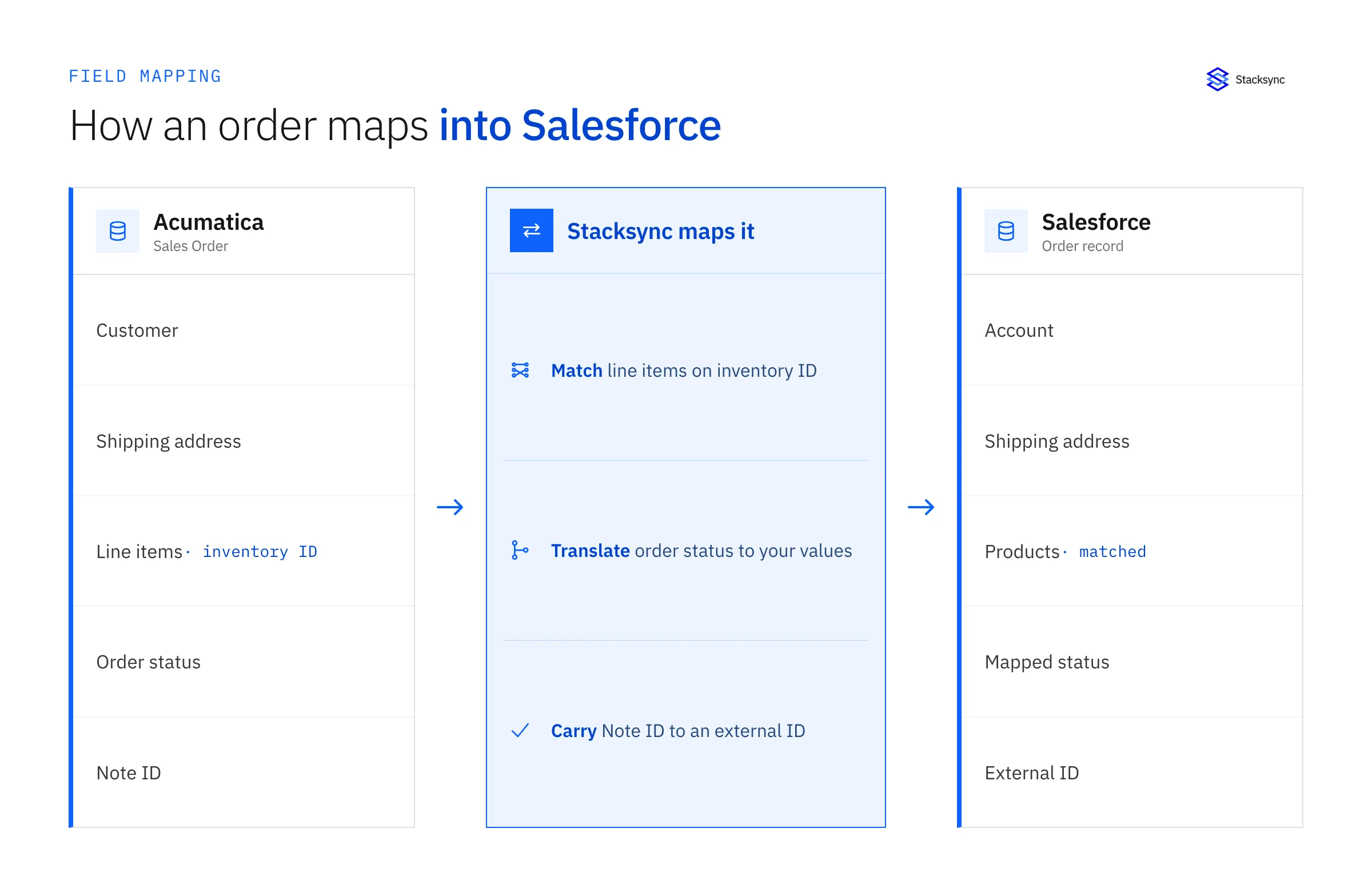
| Acumatica sales order | Salesforce | How it maps |
|---|---|---|
| Customer | Account | Matched on external ID, not created twice |
| Shipping address | Shipping address | Copied field for field |
| Line items | Order products | Matched on inventory ID |
| Quantity and price | Quantity and price | Copied as-is |
| Order status | Status | Translated to your values |
| Note ID (custom) | External ID | Carried for record linking |
A typical Acumatica sales order to Salesforce field map.
Status mapping: Acumatica and Salesforce are not 1:1
Order status is the one field that always needs translation. Acumatica and Salesforce use different status vocabularies, so they do not line up one to one. The fix is a mapping table: you decide which Acumatica status becomes which Salesforce value, and the sync applies it every time a status changes. The table below is an example, not a fixed rule, since your Salesforce status picklist is your own.
| Acumatica order status | Example Salesforce status |
|---|---|
| Open | Draft |
| On Hold | On Hold |
| Awaiting Approval | In Review |
| Back Order | Processing |
| Shipping | Processing |
| Completed | Activated |
| Cancelled | Cancelled |
Statuses do not match 1:1, so you define the mapping. Example values only.
The same idea covers custom fields. Many teams add a field during their Acumatica implementation, such as the Acumatica Note ID, to link records back to the source. That field maps into Salesforce like any other, usually to an external ID, so the connection between an Acumatica order and its Salesforce record is explicit and survives re-syncs. Getting this key in place up front is also what makes the historical backfill match cleanly instead of duplicating.
Keeping Acumatica the authoritative source for sales orders
For sales orders, most teams want Acumatica to stay the single source of truth. Orders are raised, approved, and fulfilled in the ERP, so the sync should push order data out to Salesforce and never let a Salesforce edit change the order. In Stacksync’s two-way sync, direction controls keep sales orders read-only on the Salesforce side and block writes back to Acumatica.
Direction is set per object, not globally. You can keep sales orders read-only in Salesforce while running accounts and contacts two-way if sales needs to edit those. The point is that no rep action in Salesforce ever writes back to an Acumatica order, so finance and operations always work from one authoritative version.
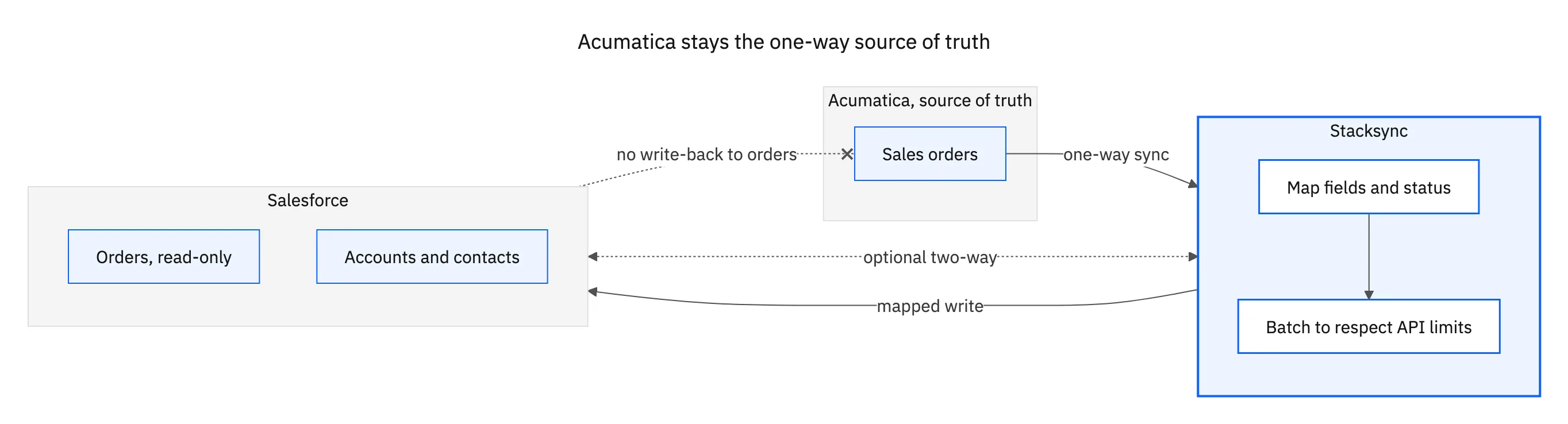
This is also where a purpose-built sync beats a stack of scripts. Because direction and read-only rules are enforced by the platform, there is no path for an accidental Salesforce edit to reach Acumatica, and no custom guard code to maintain.
Backfilling historical orders
Turning on real-time sync only handles orders from that moment forward. Teams that went live on Acumatica months ago also want the existing orders in Salesforce, often a thousand or more since go-live. That is a one-time historical backfill, and it runs on the same mapping as the live sync.
- 01Set the mapping and keys firstLock in the field map, the status mapping, and the external ID (Note ID or customer ID) so historical records match instead of duplicating.
- 02Run the historical loadRead the existing Acumatica orders in one managed backfill, applying the same field and status mapping as the live sync.
- 03Match, do not duplicateRecords match on inventory ID and external ID, so an order that later updates lands on the same Salesforce record it was backfilled to.
- 04Switch to real timeOnce the backfill reconciles, enable real-time sync so every new order and status change flows automatically from that point on.
Because the backfill and the ongoing sync share one mapping, every order from launch and the order created five minutes ago end up in exactly the same shape in Salesforce, with no separate import script to reconcile later.
Staying inside Salesforce API limits, without per-task bills
Two costs surprise teams that build this on a generic automation tool: Salesforce API limits and per-task pricing. Because a tool like Zapier bills per task, an Acumatica trigger that fires on every order and line-item change burns tasks quickly. As order volume grows, monthly task usage can climb from a few thousand into five figures, and the plan jumps a tier with it, so the integration gets more expensive exactly as the business scales.
Each of those tasks is also a separate Salesforce API call, which is how high-volume syncs bump into Salesforce rate limits during busy periods. A sync built for this handles both problems the same way.
| Concern | Per-task automation | Stacksync |
|---|---|---|
| Billing model | Per task, every triggered call counts | Not billed per record |
| Volume spikes | Task usage and cost climb with orders | Batched, so spikes are absorbed |
| Salesforce API limits | Each task is a separate API call | Grouped writes stay inside limits |
| Historical backfill | Extra tasks, extra cost | Part of the initial managed load |
Why per-task automation gets expensive at order volume, and how a managed sync avoids it.
Stacksync uses change data capture to react only when data actually changes, and it groups those changes into batched Salesforce writes with retries and replay. That keeps the sync inside API limits during peak order periods and keeps cost flat as volume grows, instead of scaling your bill with every task.

Apply this in manufacturing: customer cross-reference and quote revision
The manufacturing application of this same Salesforce–Acumatica pair carries an approved quote into a traceable order. Preserve the accepted configuration, external reference, and ownership rules so a later proposal edit cannot silently change work already released.
| Record to reconcile | Responsible owner | Rule to preserve |
|---|---|---|
| Customer cross-reference | Sales operations and finance | Match the Salesforce account to the approved Acumatica customer identifier; resolve duplicate accounts before transferring an order. |
| Quote revision | Sales operations | Preserve the accepted revision and its approval time so later opportunity edits remain visible as requests. |
| Delivery line | Order management | Carry an immutable source-line identifier, ship-to reference, quantity, unit and requested delivery date. |
An exception to plan for: Ship-to changes during preparation. Hold affected lines for review and retain the previous destination. Apply the change only to the approved revision and shipments still eligible to change. Acceptance check for the pilot: replaying the approved quote returns the same ERP order and line links without an additional order.
The manufacturing hub connects the broader operating context. These guides develop the specific record mappings and decisions for this application:
Bringing it together
An Acumatica to Salesforce sales order sync comes down to a handful of decisions: most fields copy straight across while line items match on inventory ID, order status is translated through a mapping you define, custom keys like the Note ID carry over as external IDs, sales orders remain read-only in Salesforce, with Acumatica as the source of truth, history is backfilled on the same mapping, and the whole thing runs inside Salesforce API limits without per-task bills.
Get those right and reps see live order status in Salesforce while Acumatica stays authoritative. To map your own orders, statuses, and custom fields on real data, see the Acumatica and Salesforce integration or book a demo.

FAQ
Frequently asked questions










Explore these integrations and topics
- connectorSalesforce integrations
- connectorAcumatica integrations
- platformCRM synchronization
- platformCRM and ERP integration
- platformIntegration architecture
- CRM synchronization guidesConnect customer records across sales, marketing, and operational systems.
- CRM and ERP integration guidesPlan account, order, invoice, and payment flows between commercial and finance teams.
- Integration architecture guidesEvaluate integration methods and design for conflicts, retries, failures, and changing schemas.
Related articles