

















Getting Front Conversations Into Salesforce Without Retyping Them
A practical walkthrough of connecting Front to Salesforce: what belongs in the CRM and what does not, how the sync runs from webhook to write, how senders are matched to the right Contact and Account, and exactly which fields stay in step in both directions.
- Author
- Ignacio Malpartida · GTM Engineer
- Published
- Read time
- 7 min read
Front holds the conversation. Salesforce holds the record. Without a sync between them, a person is the bridge: someone reads an email, opens the CRM, hunts for the Contact, and retypes what just happened. More often, nobody does, and the CRM slowly stops describing the customer.
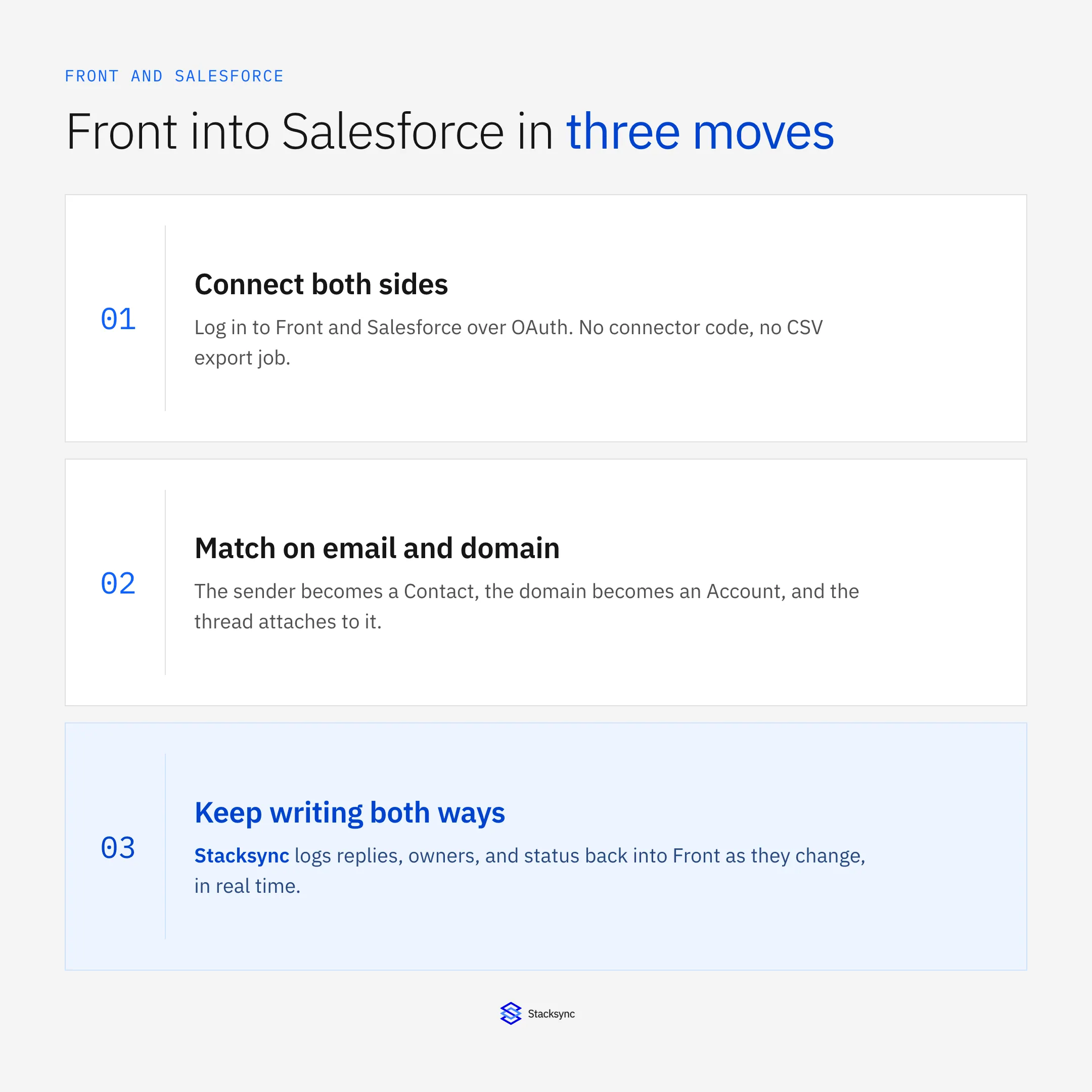
Syncing Front with Salesforce removes that step entirely. A message lands, the sender is matched to a Contact and an Account, and the conversation shows up on the right record within seconds. When the rep then changes the owner or the case status in Salesforce, the person answering the inbox sees it without switching tabs.
Here is how to set it up, what to leave out, and what actually stays in step. For the wider picture, see the guide to an enterprise iPaaS for Front.
Decide what belongs in Salesforce first
The instinct is to sync everything. Resist it. A shared inbox carries a lot of traffic that has no business in a CRM: internal threads, vendor newsletters, recruiting mail, and the half of the inbox that is not a customer at all. Once that lands in Salesforce it is expensive to remove and it makes every report worse.
Filter at the source instead. Choose which Front inboxes are in scope, exclude tags you use for internal work, and skip sender domains that are never customers. What is left is the traffic that genuinely belongs on a Contact record, which is usually a much smaller and much more useful set.
How the sync runs, step by step
The whole path from inbox to CRM is five short steps, and none of them wait for a scheduled job. A change in Front fires a webhook, the engine works out what changed, matches the customer, writes to Salesforce, and then keeps the return path open.
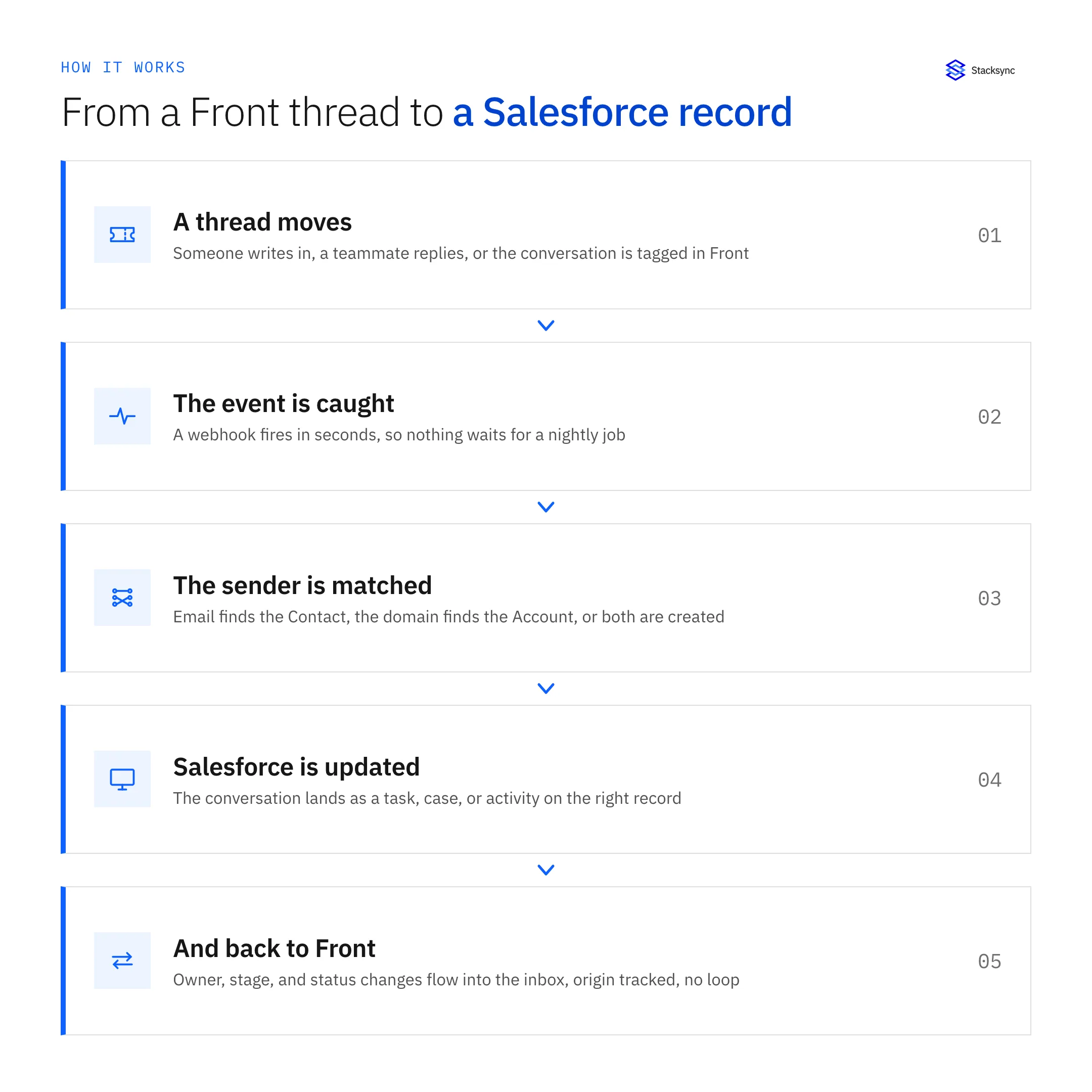
Because the trigger is an event rather than a timer, the delay is seconds. That matters more than it sounds: a rep who opens Salesforce two minutes after a customer wrote in should see the conversation there, not on the next hourly run.
Matching the sender to the right account
Matching is where most inbox-to-CRM projects go wrong, because email addresses are messy. Someone writes from a personal address, a shared alias, or a new domain after an acquisition. The rule that works in practice is layered: try the exact email first, fall back to the company domain, and only create a new record when neither matches.
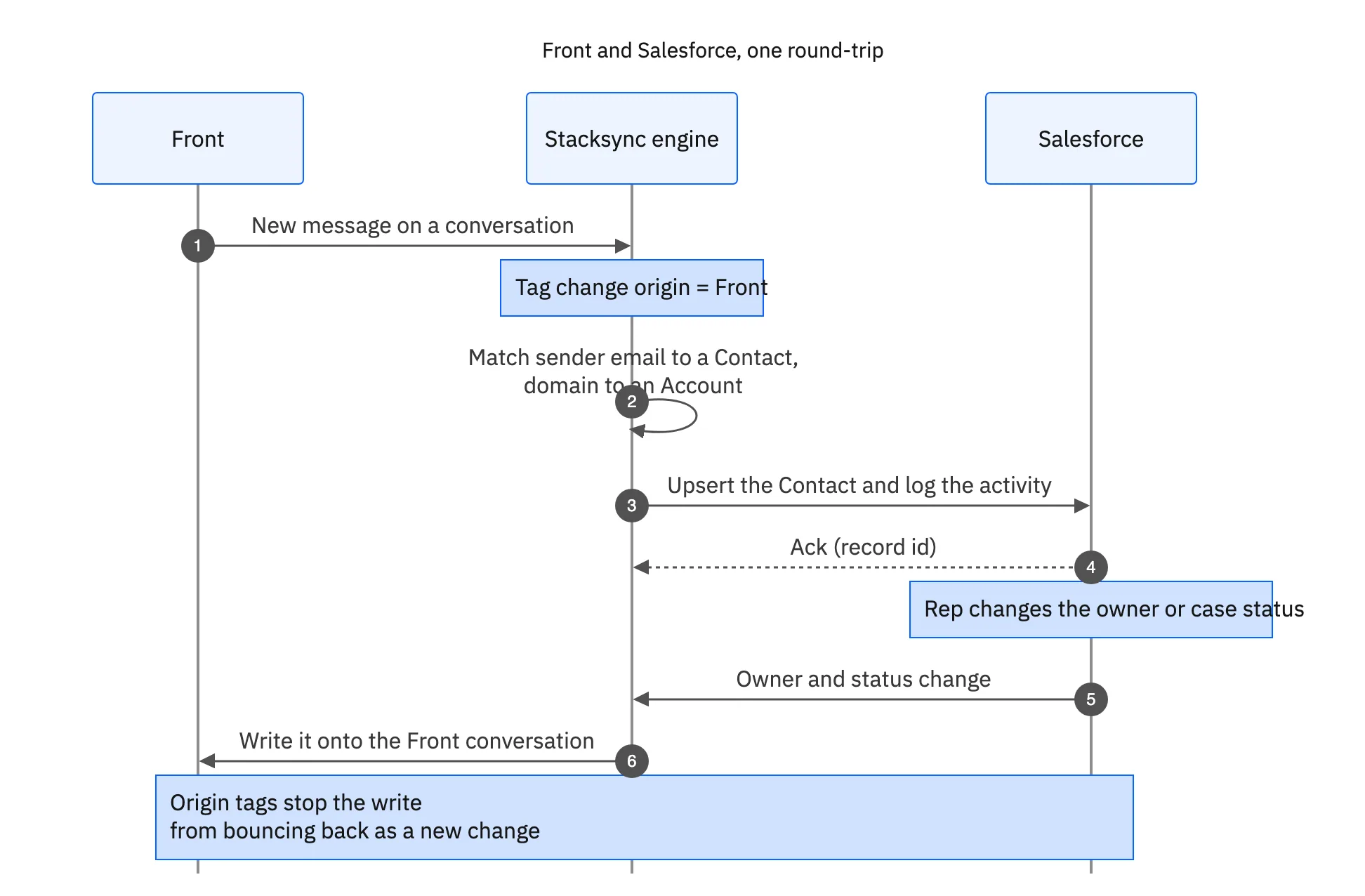
The return leg is what makes it a sync rather than a feed. A change to the owner or the case status in Salesforce is written onto the Front conversation, so the inbox reflects the CRM. Origin tracking marks which system caused each write, which is what stops the two systems from updating each other forever.

What syncs between Front and Salesforce
You choose the map, but a typical Front to Salesforce setup keeps these in step.
| Front | Salesforce | Direction |
|---|---|---|
| Sender email | Contact | Matched or created |
| Sender domain | Account | Matched or created |
| Conversation | Task or activity | Both ways |
| Tagged as support | Case | Front to Salesforce |
| Assignee | Owner | Both ways |
| Conversation status | Case status | Both ways |
A typical field map. Most rows are two-way, which is what keeps the inbox and the CRM telling the same story.
Stop retyping the inbox
Once Front and Salesforce are synced, the CRM fills itself from the conversations your team is already having, and the inbox shows what the CRM knows. Nobody retypes anything, and the customer history stops depending on whether someone remembered to log it.
If HubSpot is your CRM instead, the same engine handles Front and HubSpot. To add order and invoice context to the same inbox, see Front and NetSuite, or book a demo and we will map your real fields on the call.

FAQ
Frequently asked questions










Related articles