

















Multi-Site Alarm and Access-Control Service: Connect a Supabase Asset Register With Salesforce
Build a multisite alarm and access-control asset register with clear identity, service history and authorized access.
- Author
- Ruben Burdin · Founder & CEO
- Published
- Read time
- 5 min read
The operating decision
A Supabase asset register can keep alarm and access-control equipment context aligned with Salesforce while supporting a field or customer application. Model site, functional location, installed device and service event separately. Two-way sync maintains approved record changes; the application still needs its own authorization rules. Limit what users can see and edit by their actual site and role, and keep security-sensitive access details outside broad customer or sales views.
Explore the complete fire, life-safety and security integrators integration and automation hub for the systems and processes around this guide.
What this looks like in fire, life-safety and security integrators
An integrator services several office buildings for a facilities group. A field app needs device identifiers and service history, while Salesforce needs customer-facing status. Some users cover the whole portfolio and others only one building. A replaced reader should retain its predecessor history without exposing restricted system details to every account contact. The register needs an accurate business model and tested access boundaries, not merely a copied Salesforce asset table.
Records, ownership, and update rules
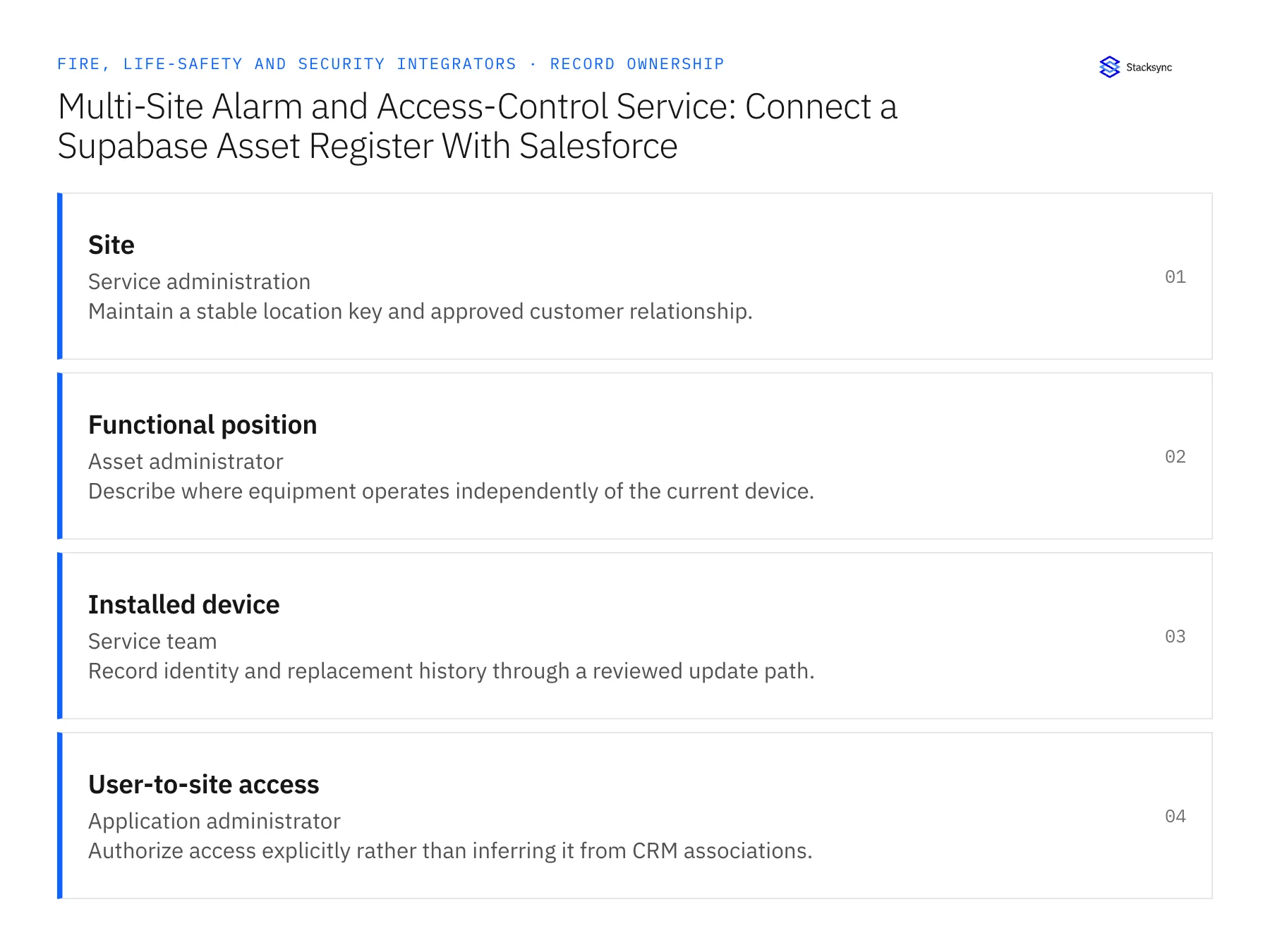
| Record | Owner | Operating rule |
|---|---|---|
| Site | Service administration | Maintain a stable location key and approved customer relationship. |
| Functional position | Asset administrator | Describe where equipment operates independently of the current device. |
| Installed device | Service team | Record identity and replacement history through a reviewed update path. |
| User-to-site access | Application administrator | Authorize access explicitly rather than inferring it from CRM associations. |
Work through the process
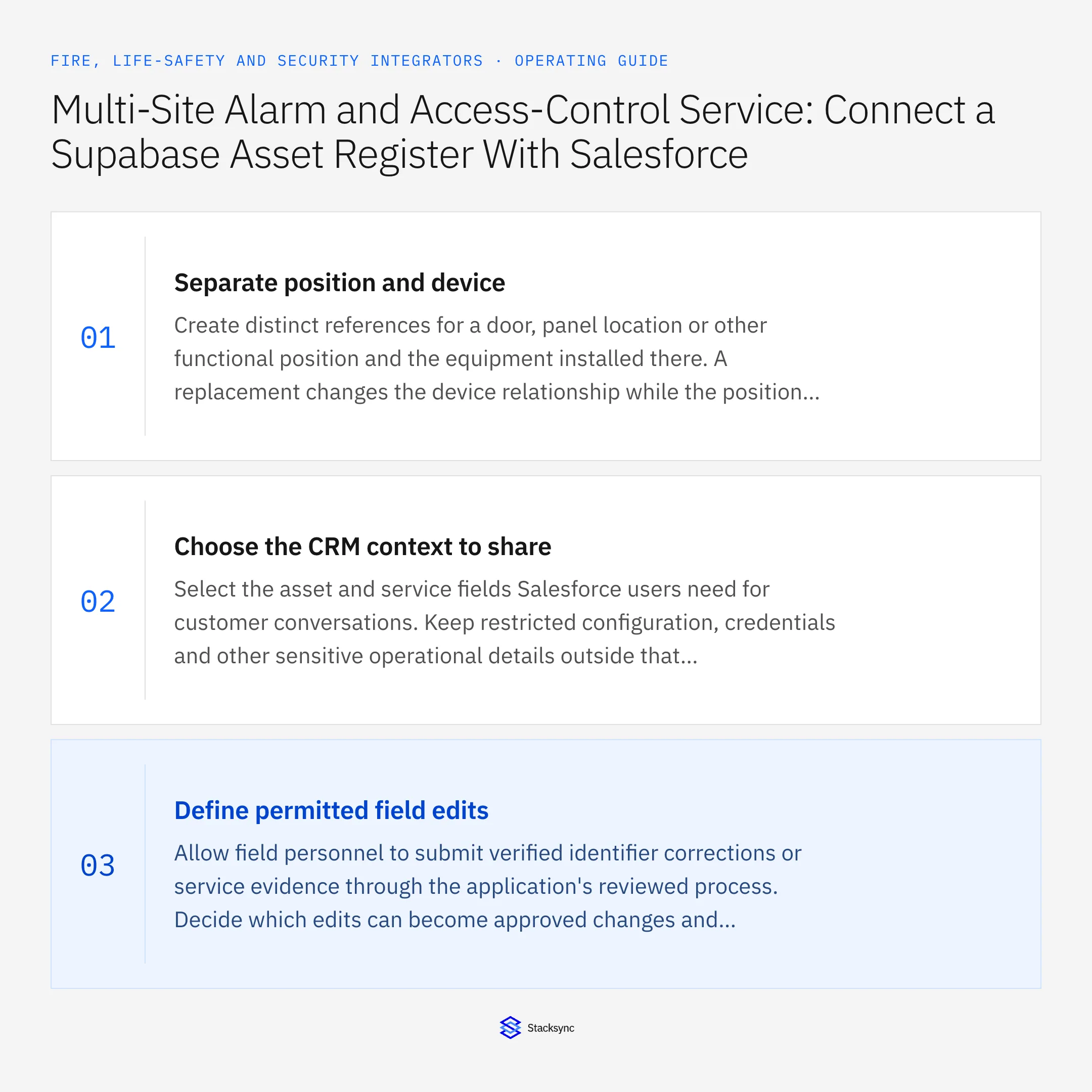
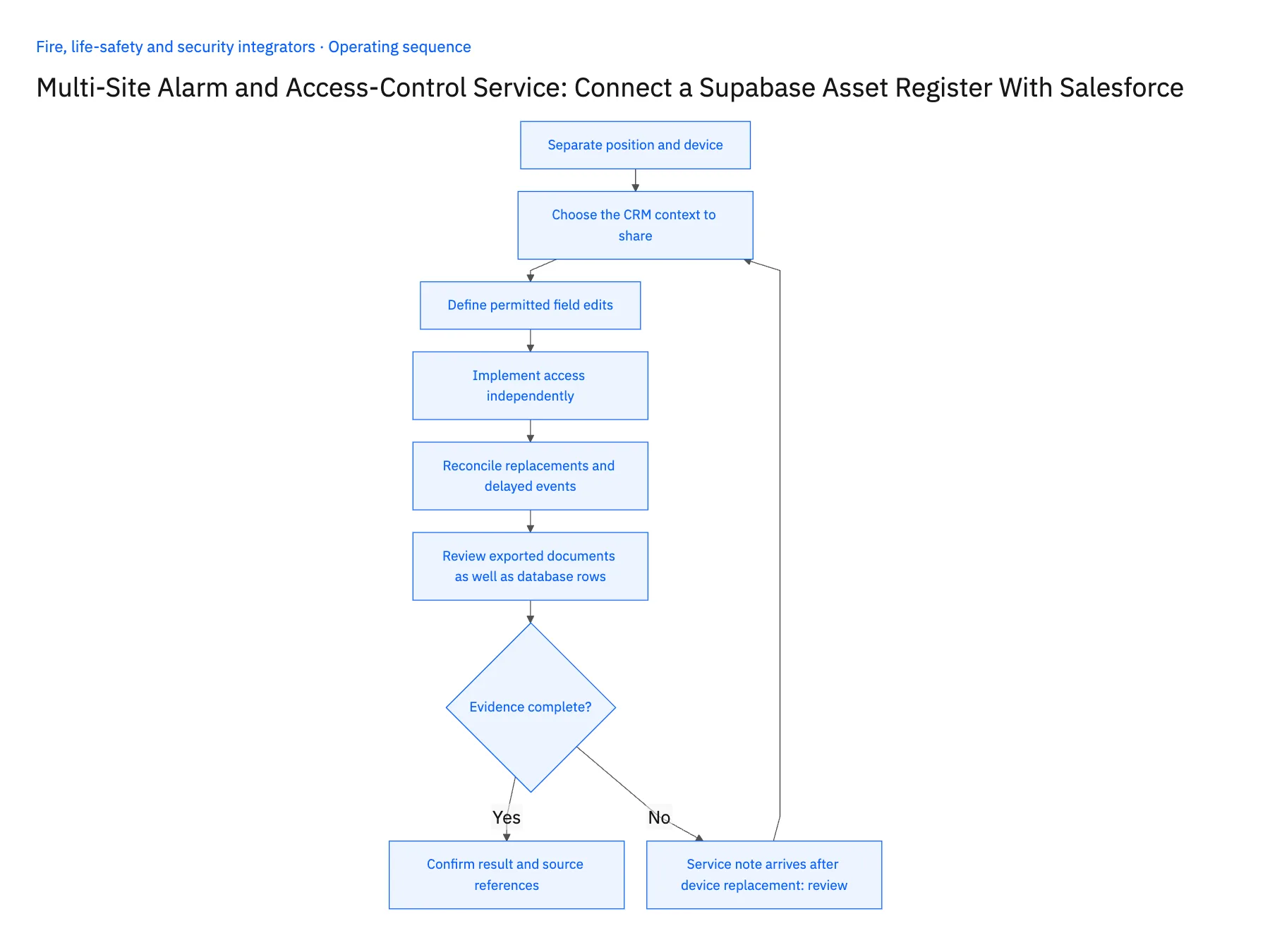
- 01Separate position and deviceCreate distinct references for a door, panel location or other functional position and the equipment installed there. A replacement changes the device relationship while the position remains. This prevents service history from becoming ambiguous when equipment labels are reused.
- 02Choose the CRM context to shareSelect the asset and service fields Salesforce users need for customer conversations. Keep restricted configuration, credentials and other sensitive operational details outside that broad summary. A successful sync should not expose every field simply because it exists in the source register.
- 03Define permitted field editsAllow field personnel to submit verified identifier corrections or service evidence through the application's reviewed process. Decide which edits can become approved changes and which need asset-administrator review. Preserve the original value and evidence when resolving a disputed device identity.
- 04Implement access independentlyUse Supabase grants and row policies for the actual user-to-site relationships. Keep the integration connection separate from client credentials and test cross-customer access explicitly. Authentication alone does not establish that a person may view every site associated with the same CRM company.
- 05Reconcile replacements and delayed eventsTest a device replacement, an offline service submission and a reassigned customer relationship. Confirm that late evidence attaches to the device active at the time of the visit, not automatically to the current replacement. Verify the selected Salesforce object's supported change-detection and write behavior.
- 06Review exported documents as well as database rowsAn asset register may link to service reports or supporting files that contain information beyond the summary fields. Apply the same project and role boundaries to those resources and test their direct access paths. Hiding a document link in the application does not establish authorization. The product owner should know which evidence may be shared with a customer and which remains restricted to authorized service or administrative personnel.
Handle the exceptions explicitly
Service note arrives after device replacement
Attach it to the correct historical device and visit rather than the latest asset automatically.
User moves to another property group
Update explicit memberships and verify the access change under the application's session policy.
Two assets share a handwritten label
Use reviewed identifiers and location evidence to resolve the ambiguity.
What to verify before expanding
- Current equipment and previous devices remain distinct.
- A customer user cannot read unrelated sites.
- Restricted operational fields stay out of the sales summary.
- Late service evidence attaches to the correct historical device.

Connect this process to the rest of your operation
Explore Stacksync two-way sync and scope the records and actions against your actual systems. Book a demo with a real site example and the exception your team handles most often, for example service note arrives after device replacement.
- Salesforce–NetSuite for Fire and Security Integrators
- HubSpot–Acumatica for Inspection and Monitoring Contracts
- Fire and Security Integrators: Align Salesforce Installed Equipment With NetSuite Customer and Service Records
- New Security Installations: Route Customer Acceptance Before Activating Recurring Billing
- Fire-System Inspection Follow-Ups: Route Deficiency Records to Approved Remedial Work
- Two-Way Sync Production-Readiness Checklist
- Remove Duplicate HubSpot Contacts Fast with Stacksync
The shared architecture guide covers record matching, ownership, and recovery across systems.
Technical references
FAQ
Frequently asked questions










Related articles