


















From Closed-Won to Posted Invoice: Wiring Salesforce Into Campfire
A practical guide to connecting Salesforce and Campfire, the AI-native accounting and ERP system. It walks through which Salesforce objects map to which Campfire records, how to key them so the same customer is never created twice, how change detection works on both sides, and what to send back to the rep once an invoice posts and a payment clears. Includes the field mapping most teams start with and the mistakes that cause duplicate customers.
- Author
- Ruben Burdin · Founder & CEO
- Published
- Read time
- 9 min read
Salesforce knows who agreed to buy. Campfire knows what they were actually billed, what they paid, and what the revenue schedule looks like. Between those two facts sits the handoff that most finance teams still do by hand: someone reads a closed-won opportunity, retypes the customer and the line items into the ledger, and then answers the rep in Slack a week later when they ask whether the invoice went out.
That handoff is a sync problem, not a process problem. This guide walks through wiring Salesforce into Campfire so the deal becomes an invoice on its own, and so the invoice, the balance, and the payment status come back to the rep without anyone opening the ledger. It covers the object mapping, the keys that stop duplicate customers, and how changes are detected on each side.
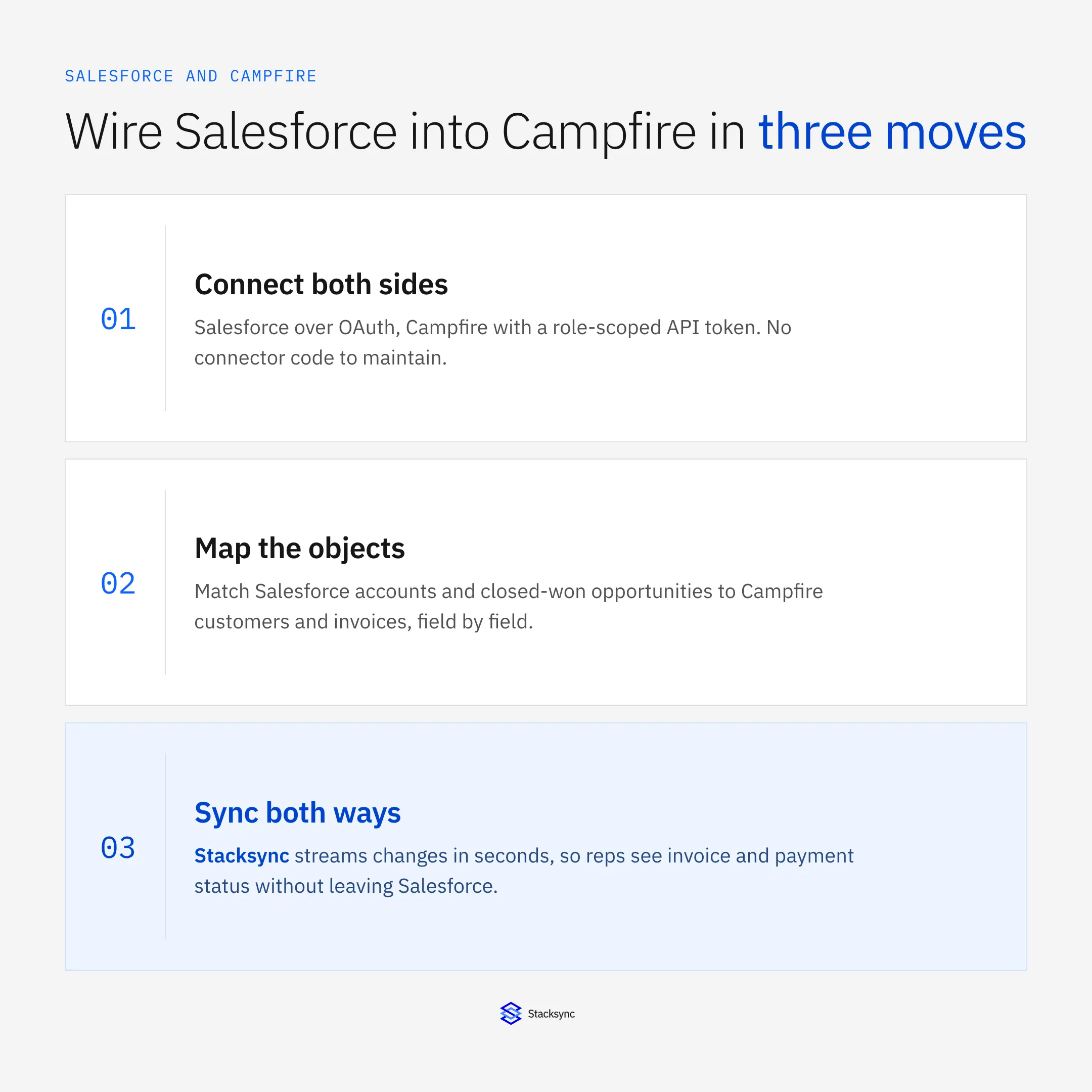
Three moves: connect, map, sync. The detail that decides whether it works long term is in the second one, so most of this guide sits there. If you are choosing a platform to run it on, start with our guide to what a Campfire integration platform has to get right.
Step 1: connect both sides
Salesforce connects over OAuth, so the sync acts as an integration user with the permissions you grant it and nothing more. Campfire connects with an API key you mint yourself: create a dedicated API user under Settings, give it a role, and copy the key once. The key is sent as an Authorization: Token header on every request.
Use a separate API user for the integration rather than a person's credentials. It means the audit log shows clearly which writes came from the sync, and it means you can rotate or revoke that one key without locking a controller out of their own ledger. If you only need a read-only feed into a warehouse, the view only role is enough; a quote-to-cash sync that creates invoices needs write access.
Step 2: map the objects, and pick a key
This is where the sync is won or lost. Salesforce and Campfire model the same customer differently, so decide up front which system owns which field, then match records on a stable id rather than a name.
| Salesforce | Campfire | Direction |
|---|---|---|
| Account | Customer | Two-way, Salesforce owns the name and address |
| Contact | Billing contact on the customer | Two-way |
| Opportunity, closed-won | Invoice with line items | Salesforce to Campfire |
| Order and order products | Invoice lines | Salesforce to Campfire |
| Invoice number, balance, status | Invoice and payments | Campfire to Salesforce, read-only for reps |
The mapping most teams start with. Ownership per field matters more than the object list.
For the key, write the Campfire customer id onto the Salesforce account and the Salesforce account id onto the Campfire customer. Every later change then updates the existing pair. Teams that skip this and match on company name end up with two customers for the same buyer within a month, usually because someone typed a trailing Inc. Campfire also supports custom fields and custom dimensions on its objects, which is the natural place to park that external id.
Step 3: sync both ways, and watch the round-trip
With the mapping in place, the engine watches both sides. On the Salesforce side it picks up the change as soon as the record is saved. On the Campfire side it subscribes to webhooks, with last_modified_at filtering on the list endpoints as the backfill path and the safety net. Nothing here runs on a nightly timer.
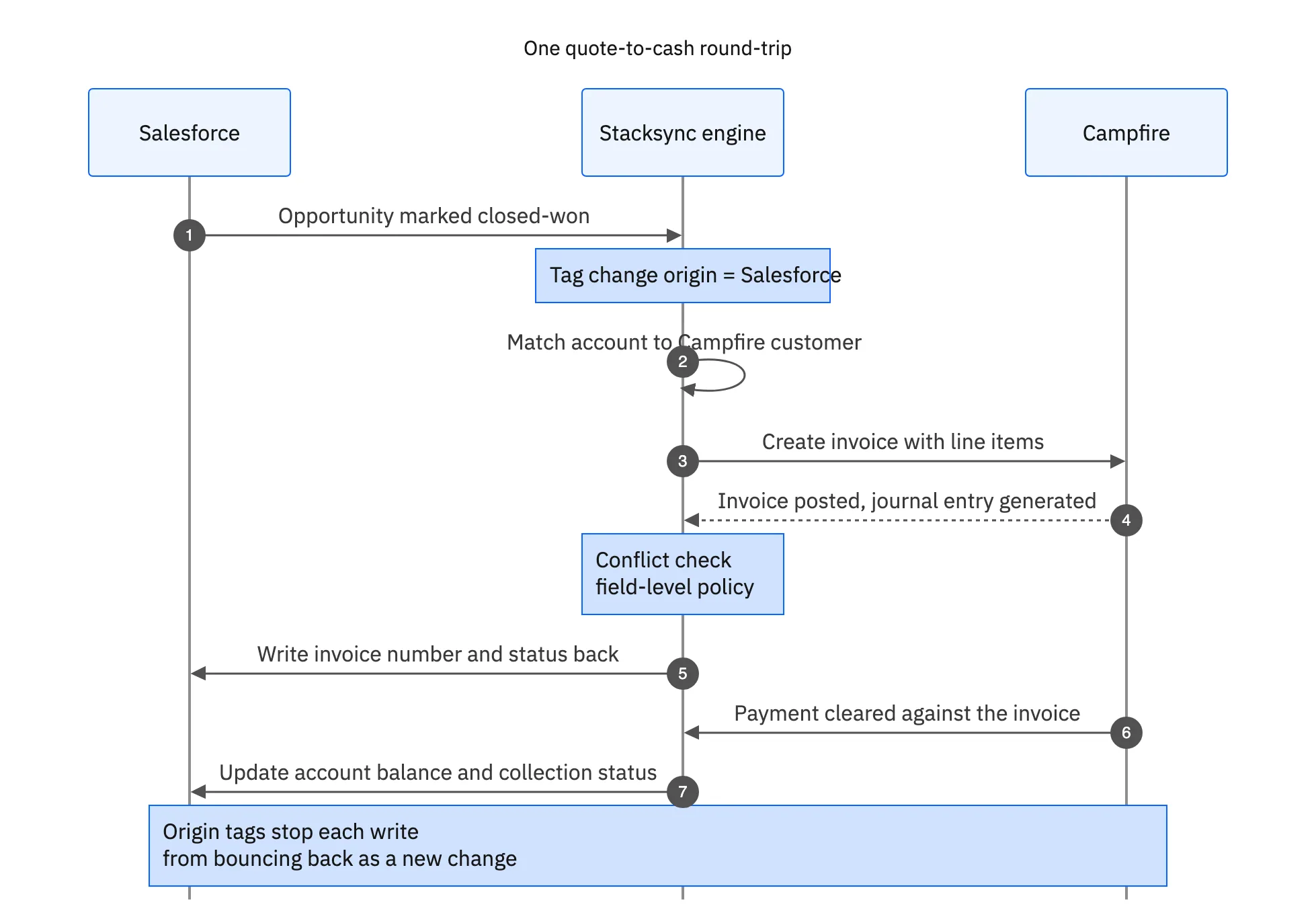
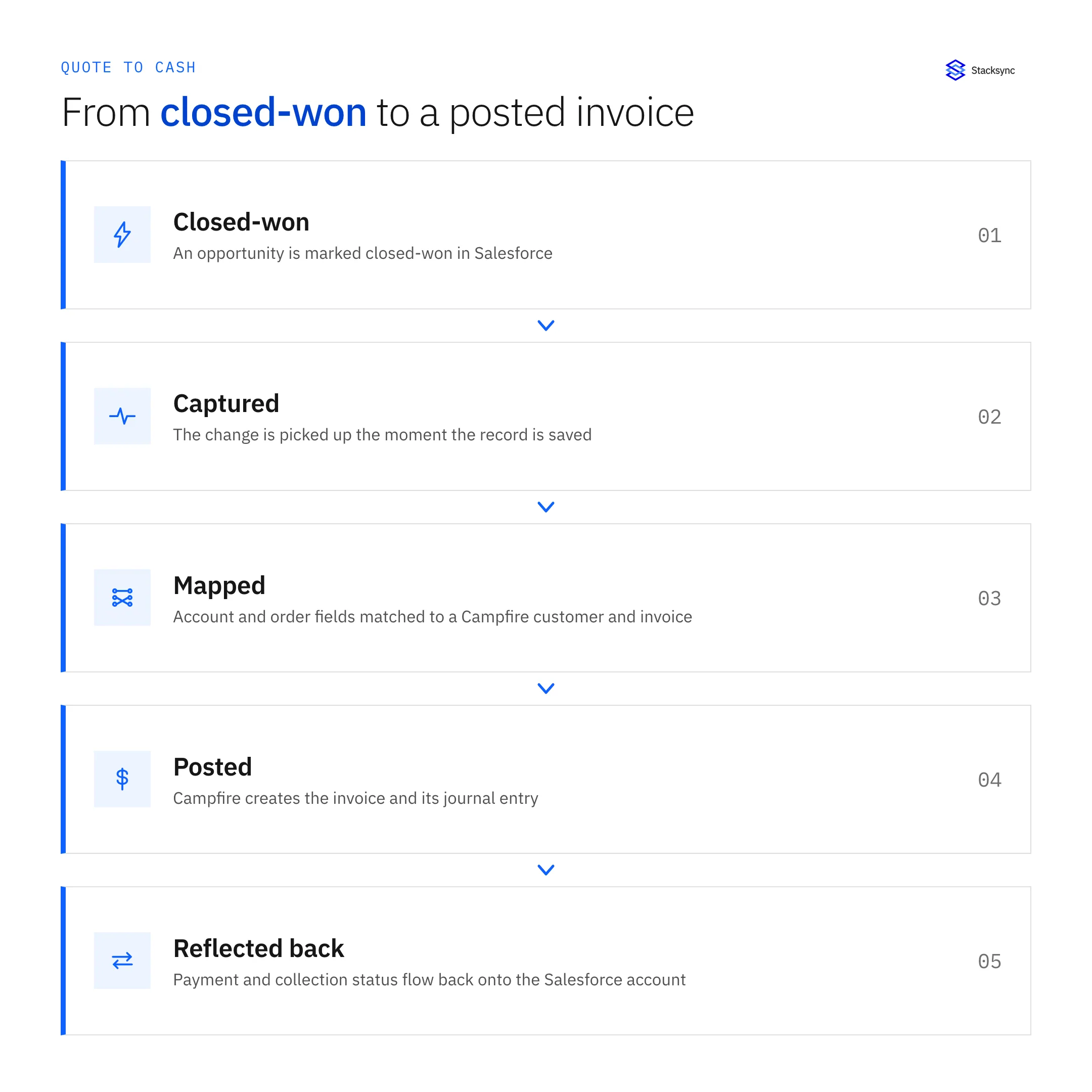
The step people forget is the return leg. Once Campfire posts the invoice and generates its journal entry, the invoice number, balance, due date, and payment status belong back on the Salesforce account. That is what stops the Slack question. It is also what lets customer success see that an account is 60 days past due before they renew it, without giving every rep a seat in the ledger.
Origin tracking is what keeps the round-trip from becoming a loop. When the engine writes the invoice number into Salesforce, it tags that write as its own, so the resulting Salesforce update is not read back as a fresh change and pushed into Campfire again. Without it, two systems that both watch for changes will happily ping the same record back and forth forever.

The cases that break a naive sync
A demo sync handles the happy path. These are the ones worth testing before you trust it with a close.
- The deal changes after it is invoiced. Decide whether an amended opportunity updates the invoice, issues a credit memo, or does nothing and raises a flag. Campfire supports credit memos and partial updates, so all three are possible; pick one deliberately.
- Both sides edit the same field. A rep fixes the billing address while finance fixes it differently. A field-level conflict policy decides the winner per field, rather than the last write clobbering the whole record.
- The customer already exists. Match on the external id, and when there is no id, fall back to a deterministic rule and log it, rather than silently creating a second customer.
- A write fails. A required field missing in Campfire should retry and surface, not disappear. This is the difference between a sync you can leave alone and one someone has to babysit.
None of these are exotic. They all show up in the first quarter, and how a platform handles them is the real product difference. For the wider argument on why a scheduled export cannot cover them, see real-time sync versus batch ETL.
One handoff, wired once
Salesforce and Campfire do not need a person in the middle. Connect both sides, map the objects on a stable key, sync in both directions, and the deal becomes an invoice on its own while the invoice becomes something the rep can see. The work is in the mapping, and it is a one-time job.
Stacksync runs that sync in real time and in both directions, with field-level conflict resolution and an audit log per record, alongside the rest of your stack on the same engine. To see it map your Salesforce objects to Campfire, book a demo, or read how the same engine handles Campfire and NetSuite.

FAQ
Frequently asked questions










Related articles