

















Getting Dynamics 365 Finance & Operations Data Into Snowflake
A practical guide to moving Microsoft Dynamics 365 Finance & Operations data into Snowflake and keeping it current. It covers why analysts want a warehouse copy instead of querying the ERP directly, how to read changes out of F&O through its OData data entities without tripping priority-based throttling, which entities to sync, and why a two-way sync beats a one-way batch export once you start modeling data you want back in F&O.
- Author
- Ruben Burdin · Founder & CEO
- Published
- Read time
- 9 min read

Finance and operations data is only useful for analytics once it is out of the ERP and in a place you can query fast. Dynamics 365 F&O runs the business, but it is not where you want your BI tools hammering live queries against sales orders and the general ledger. The warehouse is. So the real question is how to get F&O data into Snowflake and keep it current, without a brittle nightly export.
This guide walks through it: what to sync, how to read changes out of F&O without tripping its throttling, and why a two-way sync rather than a one-way copy is worth setting up even when the warehouse feels read-only.
The setup assumes a sync platform such as Stacksync between the two. If you want the platform view first, the Dynamics 365 connector and Snowflake connector pages cover the surface area; here we focus on the sync itself.
Why copy F&O into a warehouse at all
F&O is a transactional system. It is tuned for posting invoices and running supply-chain jobs, not for a finance team scanning twelve months of margin across every order line. Point a BI tool straight at it and you either slow the ERP down or hit its API limits, sometimes both. A warehouse copy gives analysts a fast, isolated place to query, join F&O data with data from other systems, and build models without touching production.
The catch is freshness. A warehouse is only as good as its last load, and finance questions like what did we invoice today need today's data, not last night's. That is why how you move the data matters as much as that you move it at all.
Getting the data across, in three moves
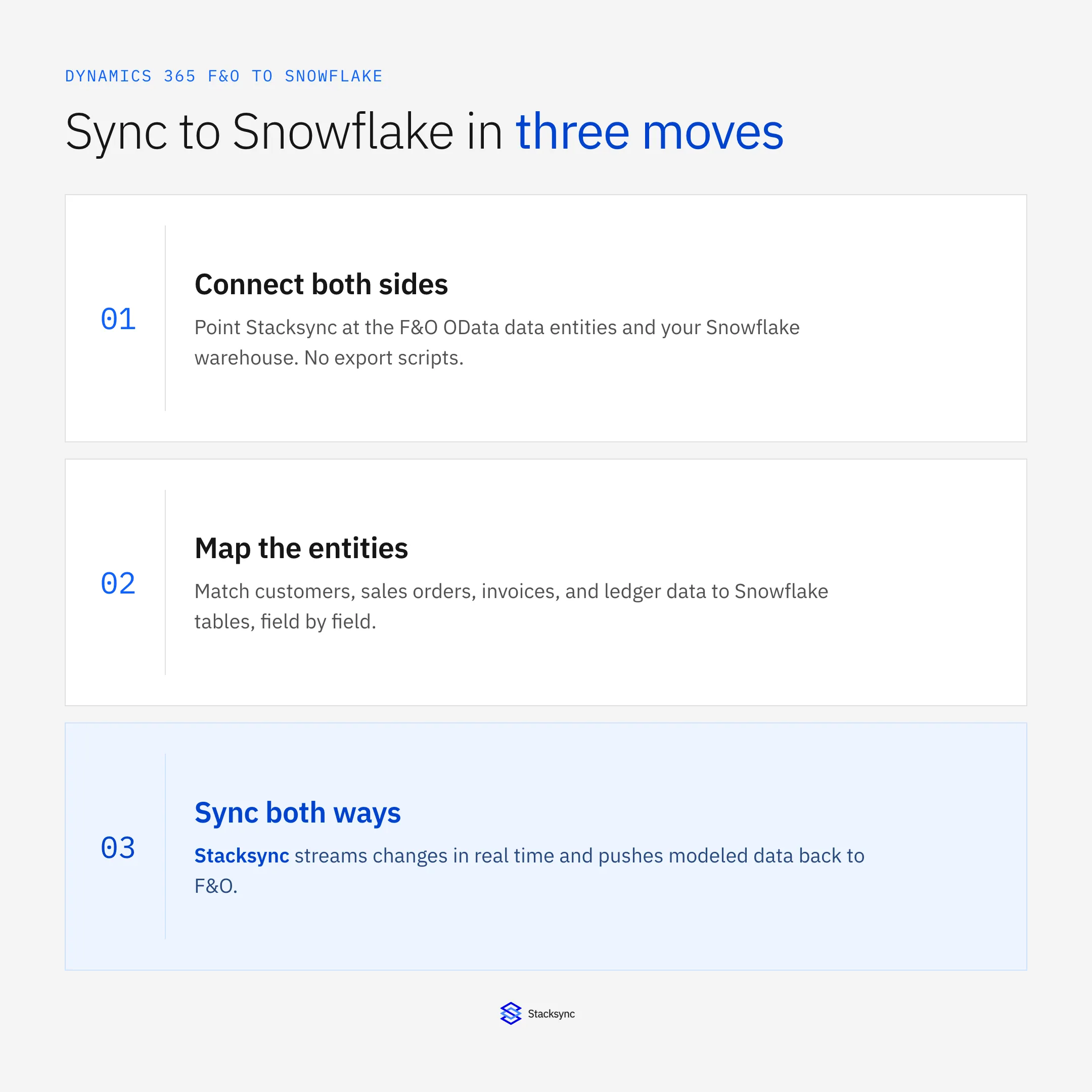
Moving F&O into Snowflake comes down to three steps: connect both sides, map the entities, and turn on the sync. The diagram below shows the path a single change takes from the ERP to the warehouse.
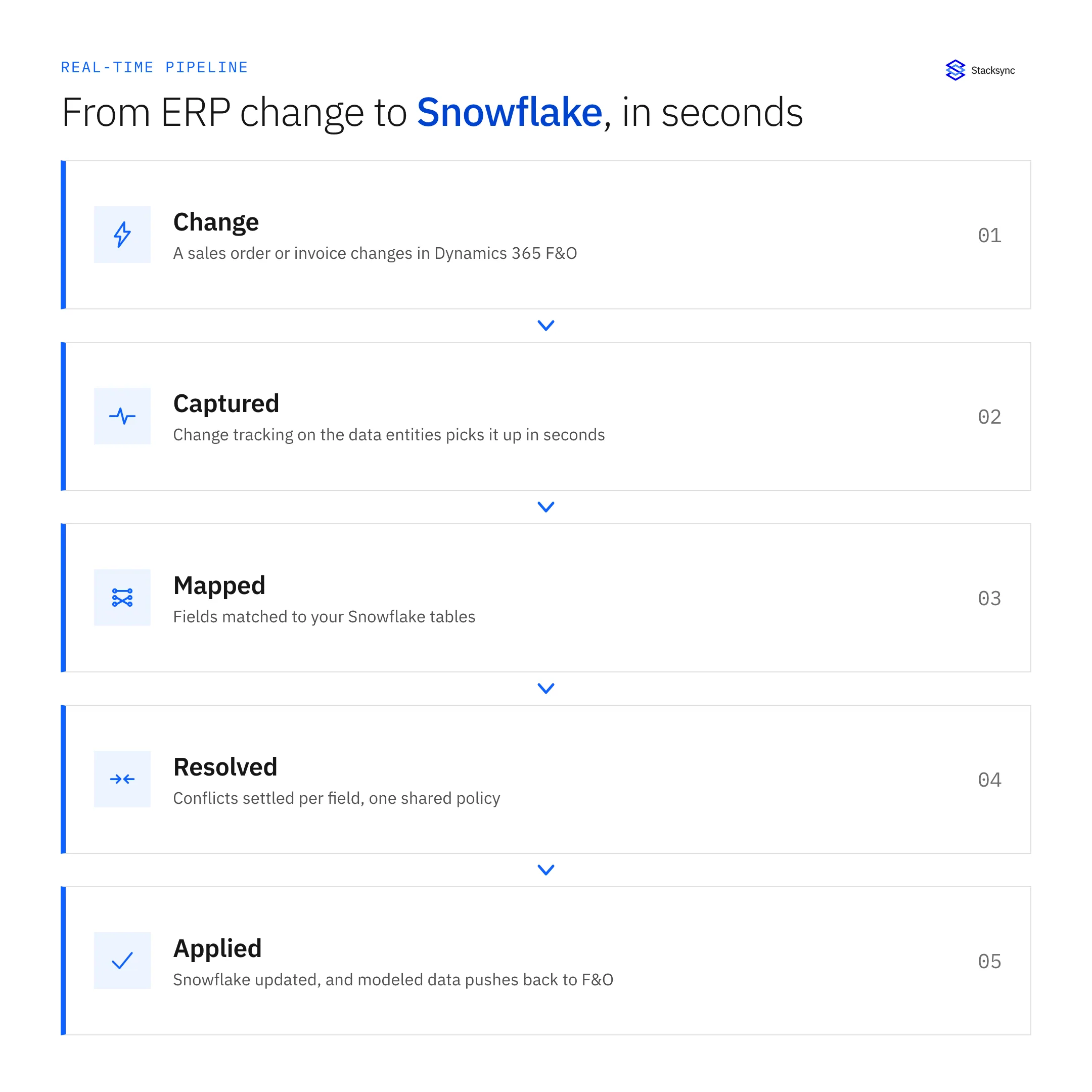
First, connect. Point the platform at the F&O OData data entities and your Snowflake warehouse, with credentials scoped to the objects you care about. Second, map. Match F&O entities to Snowflake tables, field by field, deciding types and keys. Third, sync. From then on a change in F&O is detected, mapped, and applied to Snowflake in seconds, and modeled values can flow back the other way.
What to sync out of F&O
Not everything in F&O belongs in the warehouse. Start with the entities your reporting actually uses, map each to a Snowflake table, and sync the fields that feed a report rather than every column in the entity.
- Customers and vendors. Dimension tables that every downstream join hangs off.
- Sales orders and order lines. For pipeline-to-revenue and fulfillment reporting.
- Customer invoices and payments. For AR, DSO, and cash-flow analysis.
- General ledger entries. For margin and financial reporting at the account level.
- On-hand inventory. For stock and supply-chain dashboards.
Keeping the mapping tight has a second benefit: fewer fields means fewer requests, which keeps the sync comfortably under F&O throttling and keeps your Snowflake tables readable.
Why two-way, even for a warehouse
A warehouse feels like a read-only destination, so a one-way copy seems like enough. But the moment you model something useful in Snowflake, a credit score, a churn flag, a customer tier, you want it back in F&O where the operations team can act on it. That is the round-trip a two-way sync makes cheap.
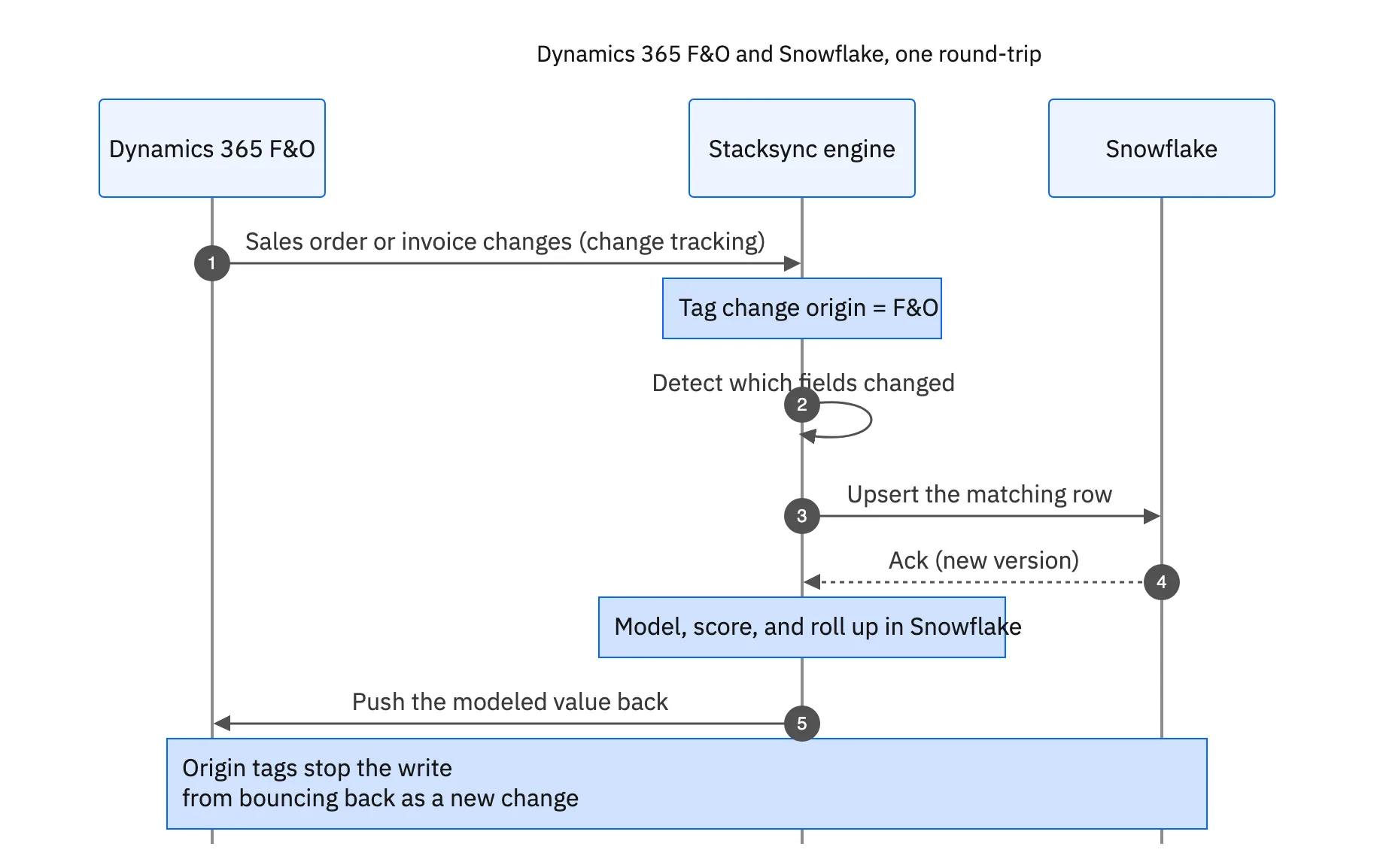
The sequence is simple: F&O emits a change, the engine tags its origin and detects which fields moved, upserts the row in Snowflake, you model on top, and the engine pushes the modeled value back to F&O. Origin tracking is what keeps that write-back from bouncing around as a brand-new change. Without it, a two-way sync becomes an echo loop; with it, both sides stay clean. The same pattern powers the F&O and PostgreSQL pairing on the same engine.

Batch export vs real-time sync
Most F&O-to-warehouse setups start as a nightly Data Management Framework export. It works until someone asks for today's numbers. The table shows why a field-level real-time sync holds up where a batch job strains.
| Nightly DMF export | Real-time two-way sync | |
|---|---|---|
| Freshness | As old as the last batch | Seconds behind the change |
| Load on F&O | Full pull, trips throttling | Only changed fields, stays under limits |
| Write-back to F&O | Not included | Built in, origin-aware |
| Failure handling | Re-run the whole job | Backs off on 429, retries |
| Schema drift | Silent breakage | Mapped and monitored |
A batch export is fine for a static monthly report; real-time sync is what the business runs on.
The batch approach is not wrong for a static monthly extract. But once the business runs on the numbers, real-time is the difference between a dashboard people trust and one they double-check in F&O anyway.
F&O data, query-ready and current
Getting Dynamics 365 F&O into Snowflake is not the hard part. Getting it there fresh, without straining the ERP, and with a path back for modeled data, is where the choice of tool shows. Connect both sides, map the entities that feed your reports, and run a field-level two-way sync so the warehouse and F&O never disagree.
Stacksync does exactly that: real-time change detection on the F&O data entities, field-level mapping into Snowflake, and an origin-aware write-back, all while honoring F&O throttling. To stream your own F&O data into Snowflake, book a demo.

FAQ
Frequently asked questions










Related articles