

















One Deposit, Forty Line Items: Amazon Payouts in QuickBooks
A practical guide to syncing Amazon Seller Central with QuickBooks. It explains why an Amazon payout is never the same number as your sales, which parts of a settlement belong on which QuickBooks account, how to set up a sync that splits the payout automatically, and how to reconcile the resulting entry to the bank deposit. Covers the item and price data that has to travel back the other way, the approaches sellers usually try first, and where each one breaks.
- Author
- Ruben Burdin · Founder & CEO
- Published
- Read time
- 9 min read
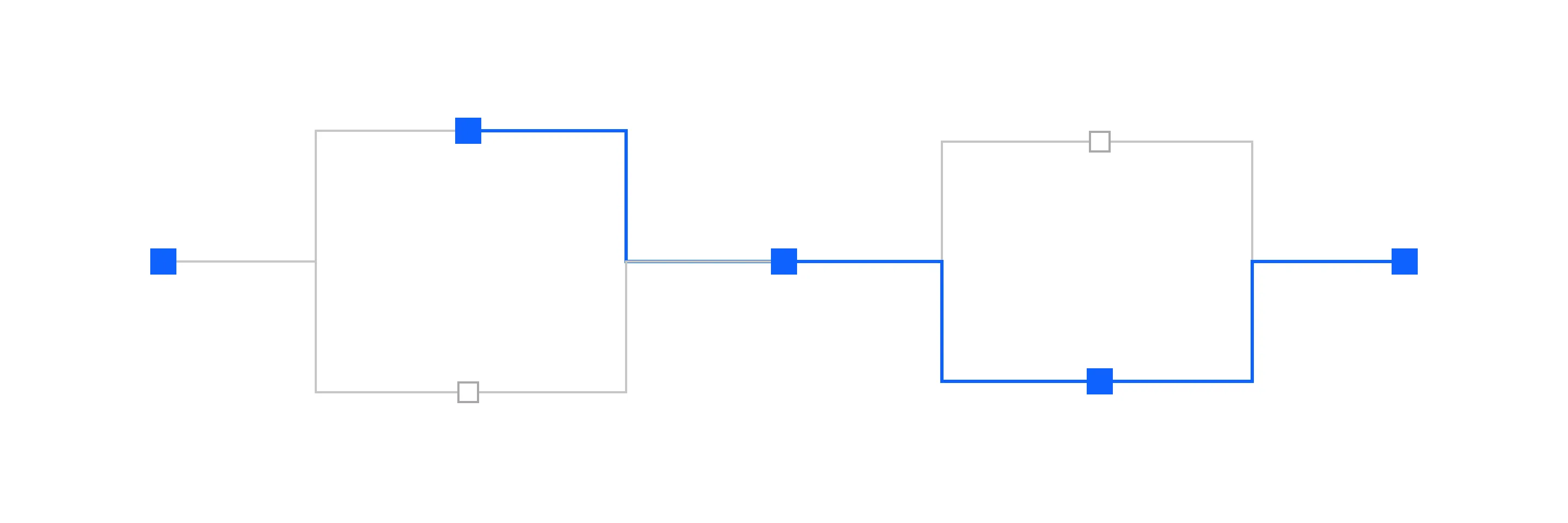
Every couple of weeks Amazon sends money to your bank account. One number, one deposit line. Behind that number sit thousands of orders, a dozen categories of fee, refunds from a period that already closed, an advertising bill, and a slice of your own money that Amazon is holding in reserve. The deposit is what is left after all of it.
Booking that deposit in QuickBooks as a single line called Amazon sales is the most common accounting mistake sellers make, and it is a quiet one. The bank reconciles, the file looks clean, and the accounts are wrong in a specific way: revenue is understated by exactly the amount Amazon charged you, and the cost of selling on the channel does not exist anywhere in the books. You cannot work out your Amazon margin from accounts that never recorded the fees.
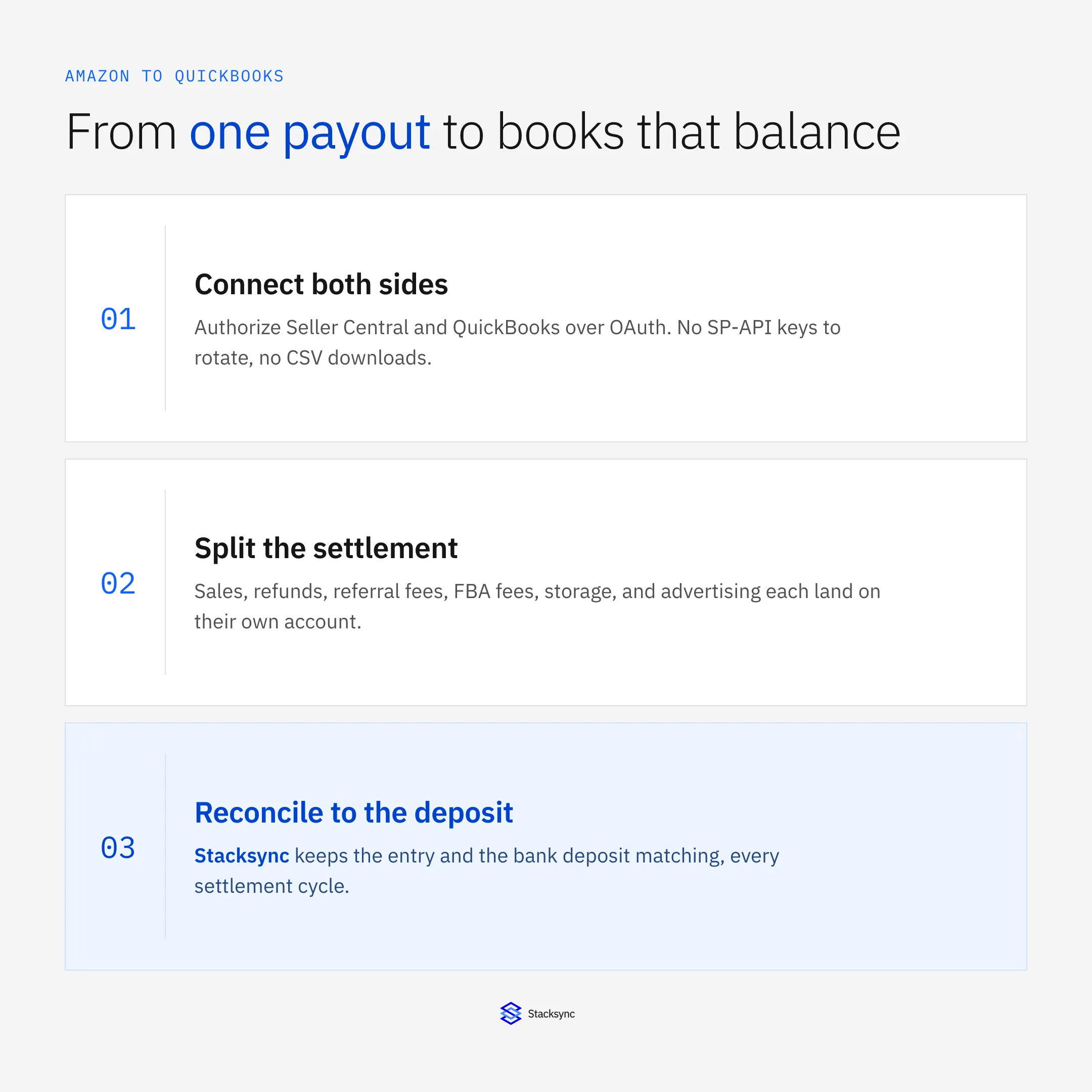
This guide covers how to fix that: what a settlement is actually made of, which QuickBooks account each part belongs on, how to set up a sync that splits it automatically, and how to keep the resulting entry reconciled to the bank deposit every cycle.
Why the payout never matches your sales
A settlement is a statement, not a receipt. It lists everything that happened to your account during the period, in both directions, and the payout is the arithmetic result. Amazon reports it in enough detail to book properly, which is the good news. The bad news is that the detail arrives as a flat file with dozens of transaction types and no opinion about your chart of accounts.
Roughly, a settlement contains four families of line. Money in: product sales, shipping and gift wrap credits, and reimbursements when Amazon loses or damages your stock. Money back out to buyers: refunds, and the portion of the original fees that Amazon returns with them. Money out to Amazon: referral fees on every sale, fulfillment fees if you use FBA, storage, advertising, and the seller subscription. And money that moves without leaving: reserve amounts held against future returns, released in a later period.
Each of those wants a different treatment. A referral fee is a cost of sale. A storage fee is closer to warehousing. Advertising belongs with marketing, not with the cost of the product. A reserve is not an expense at all, it is your money sitting somewhere else, and treating it as one will misstate the period. That is the whole reason a mapping exists.
What actually has to move
Before configuring anything, decide where each kind of line lands. This is the table to agree with whoever owns the chart of accounts, because it is the part a tool cannot decide for you.
| What Amazon reports | Where it belongs in QuickBooks |
|---|---|
| Product sales | Income, split by SKU group or channel |
| Shipping and gift wrap credits | Their own income accounts, not merged into sales |
| Promotional rebates | Contra-revenue, not a selling expense |
| Refunds and returns | Contra-revenue, with the returned fee credited back |
| Referral fees | Cost of sale |
| FBA fulfillment fees | Cost of fulfillment |
| Storage and long-term storage | Warehousing expense |
| Advertising costs | Marketing expense |
| Seller subscription | Fixed selling expense |
| Reserve and unavailable balance | A balance sheet holding account, never an expense |
| The net payout | The bank deposit, matched against the feed |
Agree this mapping once. Everything downstream is mechanical after that.
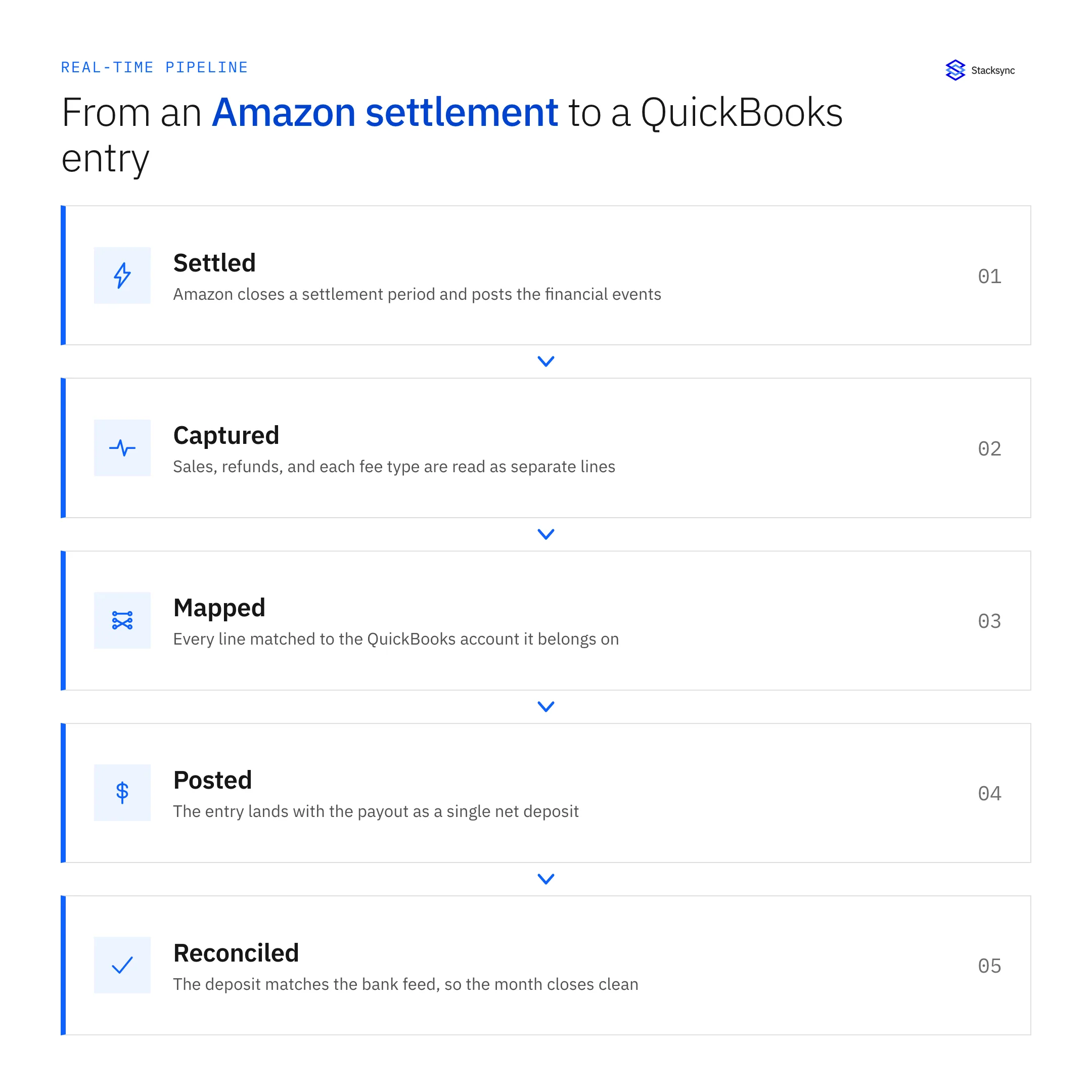
Note what is not in that table: individual orders. Most sellers should not push thousands of Amazon orders into QuickBooks one at a time. It bloats the file, it slows the interface down, and it tells you nothing the summary does not. Keep order-level detail where it is useful, in the ERP or the warehouse, and send accounting the summary it actually needs.
Setting the sync up
With the mapping agreed, the configuration itself is short. Four steps, and none of them involve writing against the Selling Partner API yourself.
- Authorize both systems. Connect Amazon Seller Central and QuickBooks over OAuth. No Selling Partner API credentials to store or rotate, and no scheduled export sitting on somebody's laptop.
- Choose what syncs. Settlements and financial events out of Amazon, and, if QuickBooks holds your item list, items and prices back the other way.
- Apply the mapping. Point each settlement line type at the account you agreed, and decide how sales are grouped: one income line, or split by SKU family or marketplace.
- Set the conflict policy. Decide which side wins when the same item price changes in both, and turn it on. From there each closed settlement posts on its own.
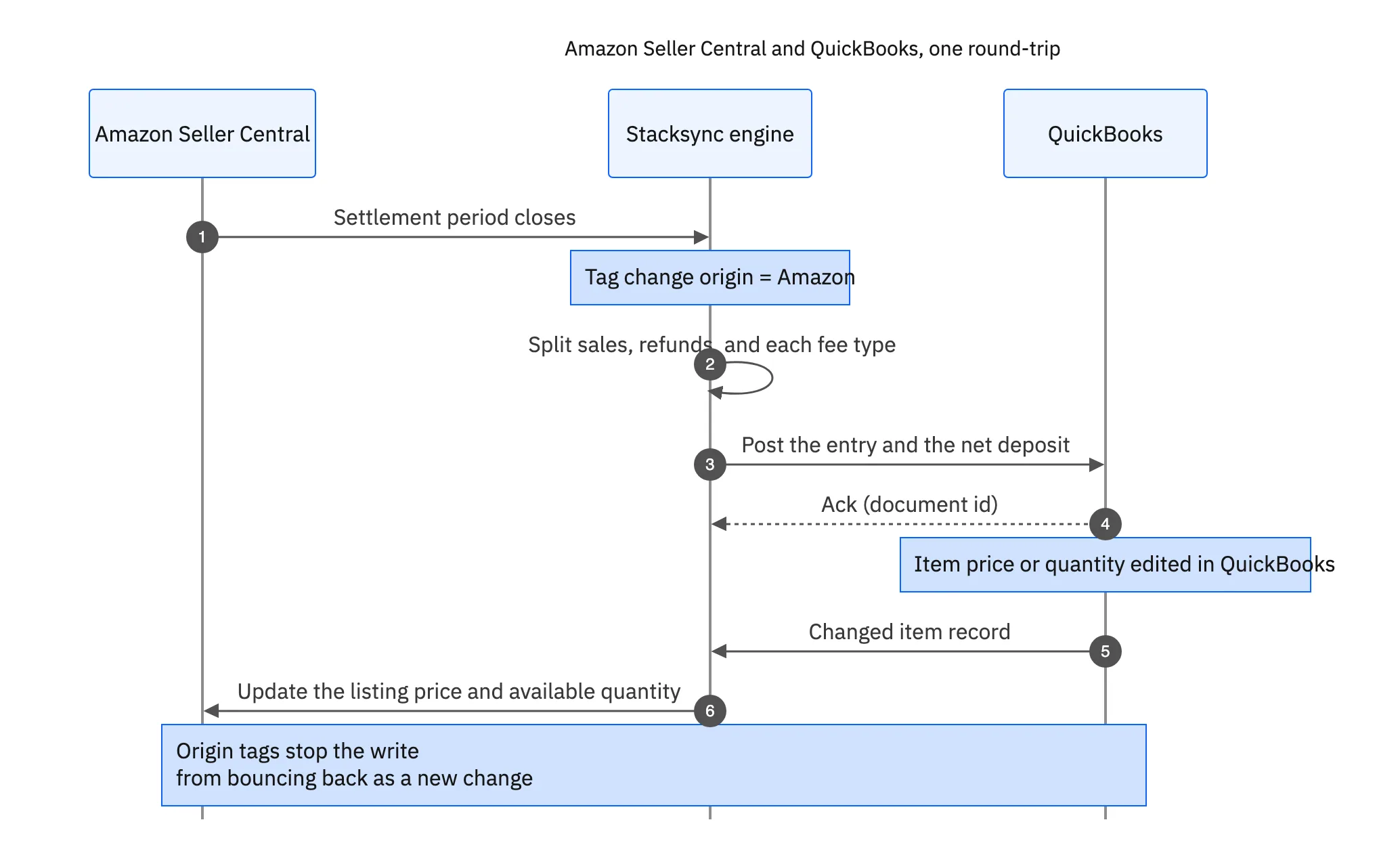
That return leg is worth dwelling on. If your item list lives in QuickBooks, a price change made there should reach the listing, not wait for someone to remember. The risk with any two-way setup is an echo: the engine writes a price to Amazon, reads it back as a change, and writes it to QuickBooks again. Origin tracking is what stops that, and it is the difference between a sync you can leave running and one you have to watch.
Reconciling to the bank deposit
The test of the whole exercise is simple: when the deposit appears in the bank feed, does it match a QuickBooks entry exactly, with nothing left over. If it does, the split was right. If it does not, the difference tells you which line type was mishandled, and it is almost always the reserve or a refunded fee.
Two timing details cause most of the confusion. First, a settlement period closes before the money moves, so the entry and the deposit can land on different days. Post the entry when the settlement closes and let it clear against the deposit rather than trying to date them together. Second, the reserve means money earned this period may be paid in the next one. If it sits in a holding account rather than being netted into sales, the two periods still reconcile cleanly.

The three approaches, and where each breaks
Most sellers try these in order, usually because each one stops working at a particular volume.
| Manual CSV export | Point connector | Real-time two-way sync | |
|---|---|---|---|
| Cadence | When someone remembers | On a fixed schedule | When the settlement closes |
| Fee detail | Whatever the spreadsheet keeps | Usually a fixed mapping | Every line type, mapped by you |
| Direction | One way | One way | Both, on one connection |
| Item and price changes | Retyped by hand | Not covered | Written back to the listing |
| When Amazon throttles | The download fails | The run fails partway | Work queues and drains |
| Reconciliation | Manual, every cycle | Manual when it drifts | Entry matches the deposit |
The CSV works until the fee categories multiply. The point connector works until you need the other direction.
Get the split right once
Amazon gives you the detail you need to account for the channel properly. The work is deciding, once, where each line belongs, and then never doing it by hand again. Do that and the monthly question stops being what this deposit was and becomes what the channel actually earned, which is the question worth asking.
Stacksync connects Amazon Seller Central and QuickBooks on one engine, in real time and both ways, over OAuth and without storing a copy of your data. To see it against your own settlements, book a demo, or read more about the Amazon Seller Central and QuickBooks integration, the QuickBooks connector, and what to look for in an enterprise iPaaS for Amazon Seller Central. If stock rather than the books is the pressing problem, start with two-way sync between Amazon Seller Central and NetSuite.

FAQ
Frequently asked questions










Explore these integrations and topics
Related articles