






Bird connector for Stacksync workflows.
Connect Bird to your Stacksync workflows to send email, SMS and WhatsApp messages, reply to Apple Messages for Business conversations, and verify users with one-time passcodes. Use data from your CRM, database and other connected apps to automate customer notifications, retrieve messages and check their status.
- Built and maintained by Bird
- Connect with one Bird Workspace API Key
Adopted by fast-scaling companies moving mission-critical data in real time










ACTIONS
What the Bird connector does
Five actions you add as workflow steps. Recipients and message content come from the steps before them.
- 01
Send message
Send email, SMS or WhatsApp messages, or reply in an existing Apple Messages for Business conversation. Choose a channel, then the sender or conversation, the recipient and the content that channel needs.
- 02
Send verification
Send a one-time passcode to a user, for example during onboarding or before an account change.
- 03
Check verification
Check the code the user entered and continue the workflow only when it matches.
- 04
Get message
Retrieve a single message and its delivery status, then route the result to the next step or another app.
- 05
List messages
List messages for a channel your key can read, for reporting or to reconcile delivery with your CRM.
EXAMPLE WORKFLOWS
Customer messages from the data you already have
Start a workflow from a change in your CRM, database or ERP, then let Bird deliver the message.
-
WhenA deal moves to Closed Won in your CRM
BirdSend a WhatsApp welcome message to the new customer with their account manager’s name.
-
WhenAn order status changes in your database or ERP
BirdText the customer the new status and tracking link by SMS.
-
WhenA user requests an email or phone change
BirdSend verification, then Check verification, and continue only when the code matches.
-
WhenA notification is sent
BirdGet message returns the delivery status; write it back to the contact in your CRM.
SETUP GUIDE
Authorize Bird
Connect your Bird workspace to Stacksync with an API key, then use the connection in workflows. The key sets your Bird workspace and API region, so there is no base URL or workspace ID to enter.
Create a Bird API key
- Sign in to the Bird dashboard and select the workspace you want to connect. You need an Admin or Developer role to create API keys.
- Open Platform tools > API keys, then click Create API key.
- Enter a name, such as
Stacksync. Expand the scope groups and select permissions for the actions you plan to use.
| Use | Scope | Level |
|---|---|---|
| Read workspace information | workspace | Read |
| Send email and read message status | emails | Write |
| Load email sender and template options | email_management | Read |
| Send SMS and read message status | sms | Write |
| Load SMS sender and template options | sms_management | Read |
| Send WhatsApp messages and read message status | whatsapp | Write |
| Load WhatsApp sender and template options | whatsapp_management | Read |
| Reply to Apple Messages conversations and read messages | amb | Write |
| Load Apple business options | amb_management | Read |
| Send and check verification codes | verify | Write |
Grant the scopes your workflow needs. Write includes Read. For a workflow that only retrieves messages, select Read for the messaging scope. Sender and template pickers also need the matching settings scope.
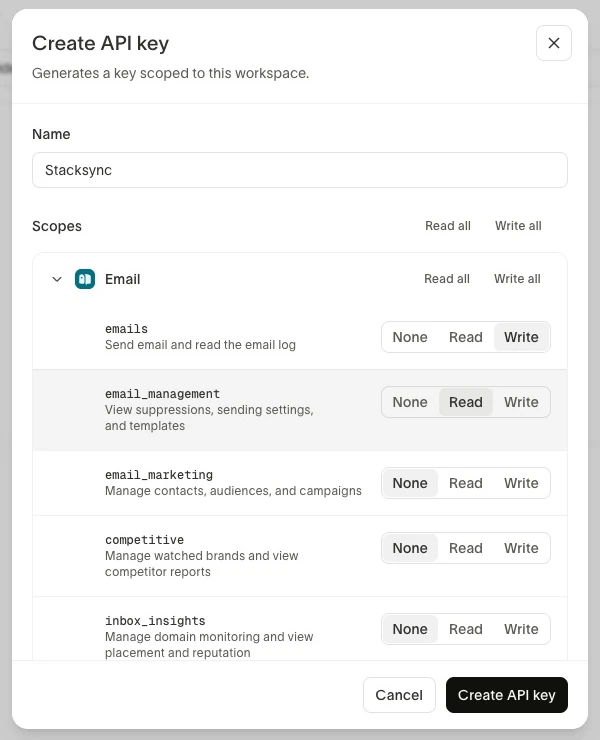
- If you need an expiry date, set it under Advanced. Click Create API key, then copy the full key and store it securely. Bird shows the full secret once. The key begins with
bk_eu1_orbk_us1_.
Create the Stacksync connection
- Sign in to Stacksync. Open Connections, then select Create Resource > Connections.
- Search for
Birdand select the Bird connector.
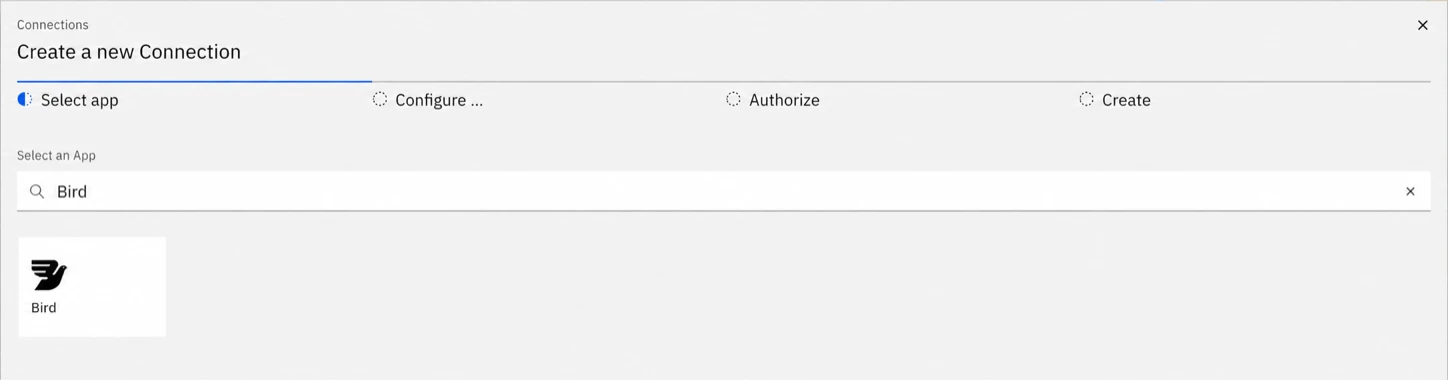
- Paste the full Bird key into API Key and click Next.
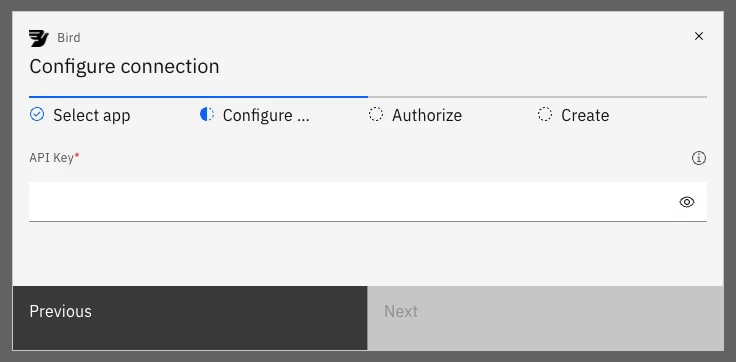
- Complete the authorization steps, name the connection and click Create. If prompted for a Stacksync region, use the region of your workflow.
Use the connection in a workflow
- Open a Stacksync workflow and click Create Action. Expand Bird and choose an action.
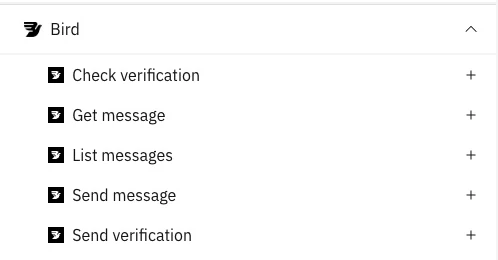
- Select your saved Bird connection and configure the action. For Send message, choose a channel, sender or conversation, recipient and content as that channel requires.
- Save the action and workflow. For a first read test, use List messages with a channel your key can read. An empty list is valid if the workspace has no matching messages.
Before you send, and if something fails
- Configure the channel in Bird first. Verify an email sending domain, activate an SMS sender, connect a WhatsApp sender, or set up an Apple business with an existing customer conversation.
- Authentication fails: check whether the key has expired or been revoked.
- An action or picker returns a permission error: add its required scope to the key in Bird.


Bird builds and maintains this connector with the Stacksync CLI. Stacksync reviews it and publishes it in the connector catalog, next to the systems your workflows read from.
Browse all connectorsFAQ
Bird connector FAQ
What can the Bird connector do in a Stacksync workflow?
It adds five Bird actions as workflow steps. Send message covers email, SMS, WhatsApp and replies in Apple Messages for Business conversations. Send verification and Check verification handle one-time passcodes. Get message and List messages retrieve messages and their status.
How do I connect my Bird account?
In the Bird dashboard, open Platform tools > API keys and create a key with the scopes your workflow needs (Admin or Developer role required). In Stacksync, create a Bird connection and paste the key. The key identifies your workspace and its API region, so you do not enter a workspace ID or base URL.
Does the connector work with Bird workspaces in the US and EU?
Yes. Bird keys begin with bk_us1_ or bk_eu1_, and the connector uses that to send requests to the matching Bird API region.
Which Bird API scopes does the key need?
Grant the scope for each channel you use at Write to send (emails, sms, whatsapp, amb, verify), plus the matching settings scope at Read to load sender and template options (for example email_management). Read access to workspace is also needed. Write includes Read.
Can I personalize messages with data from my CRM or database?
Yes. Earlier workflow steps can read records from your CRM, database or any other connected app, and the Bird step uses those fields to choose recipients and fill message content.
Is this a two-way sync connector?
No. Bird is a workflow connector: it performs actions such as sending a message or verifying a user when a workflow runs. To keep records equal between two systems, use a Stacksync two-way sync alongside it.
Who builds and maintains the Bird connector?
Bird builds and maintains the connector with the Stacksync CLI. Stacksync reviews it and publishes it in the connector catalog.
Security teams trust Stacksync
As a data company, we understand the importance of keeping your data secure. Stacksync is built with security best practices to keep your data safe at every layer, and is DPF-certified for US, EU, UK and CH data transfers.


SSO & SCIM
Let your users access Stacksync from your centralized user management systems. Works with Okta, Azure, Google SSO and more.
Alerts
Immediately get alerted about record syncing issues over email, Slack, PagerDuty and WhatsApp. Resolve issues from a centralized dashboard with retry and revert options.
Secure connection options
Securely connects to your systems with: