















Heroku Connect Alternative: Why Teams Switch to Stacksync
Looking for a Heroku Connect alternative? Stacksync runs real-time, two-way Salesforce and Postgres sync on any Postgres host, priced on records in sync.
- Author
- Ruben Burdin · Founder & CEO
- Published
- Updated
- Read time
- 10 min read

If you're searching for a Heroku Connect alternative, you're not alone. Engineering teams across SaaS, e-commerce, and financial services are moving away from Heroku Connect due to opaque pricing, Heroku platform lock-in, and limited integration scope. Stacksync provides a superior alternative to Heroku Connect for Salesforce-PostgreSQL synchronization, with transparent pricing, platform independence, and advanced workflow automation that eliminates vendor lock-in and hidden infrastructure costs.
Organizations choosing Stacksync as their Heroku Connect alternative gain enterprise-grade bi-directional sync capabilities without mandatory platform dependencies or unpredictable pricing structures.
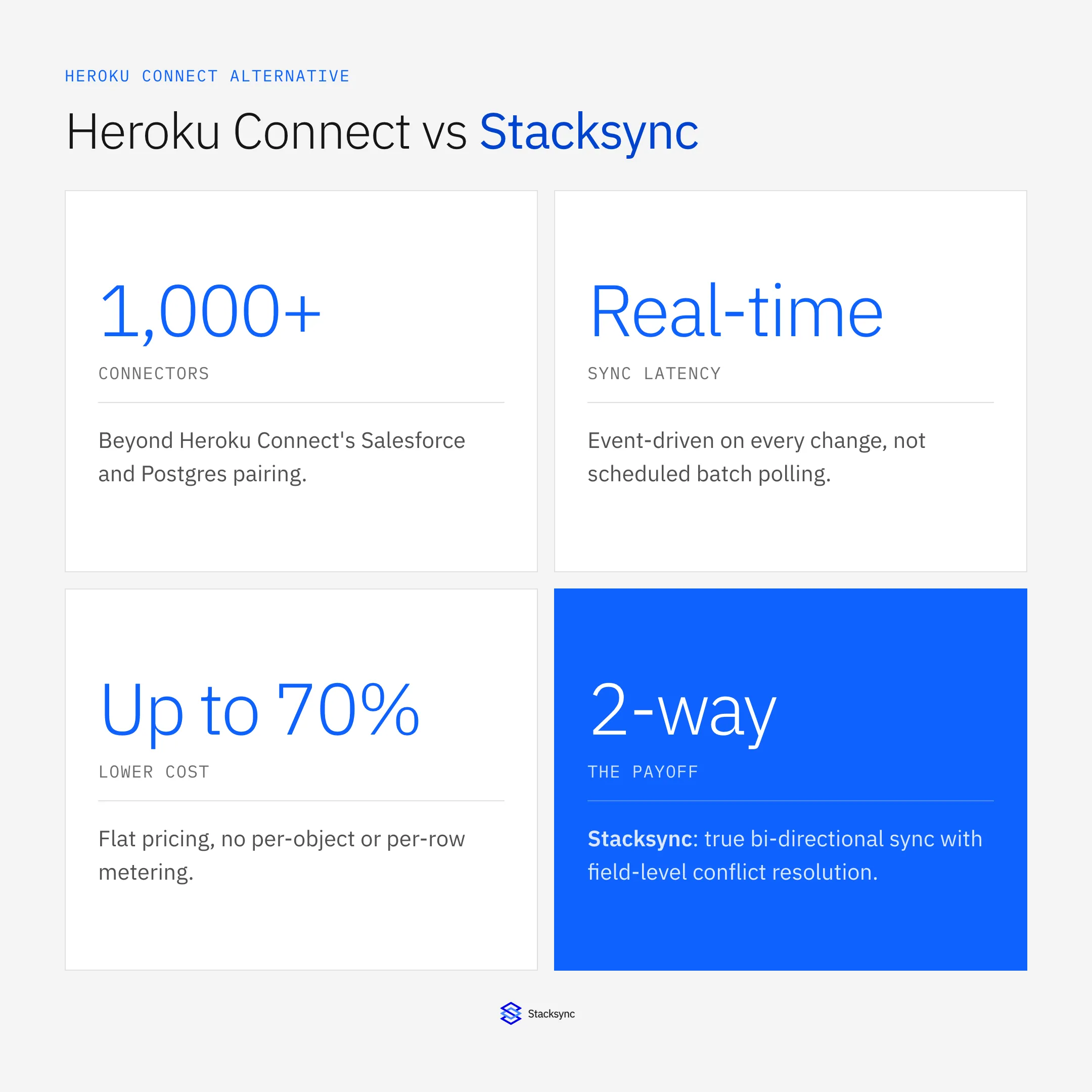
This post explains why teams switch to Stacksync. For a side-by-side comparison of Heroku Connect alternatives, including CData Sync, Skyvia, integrate.io and a custom Change Data Capture pipeline, see our hub page.
Why Companies Choose Stacksync as a Heroku Connect Alternative
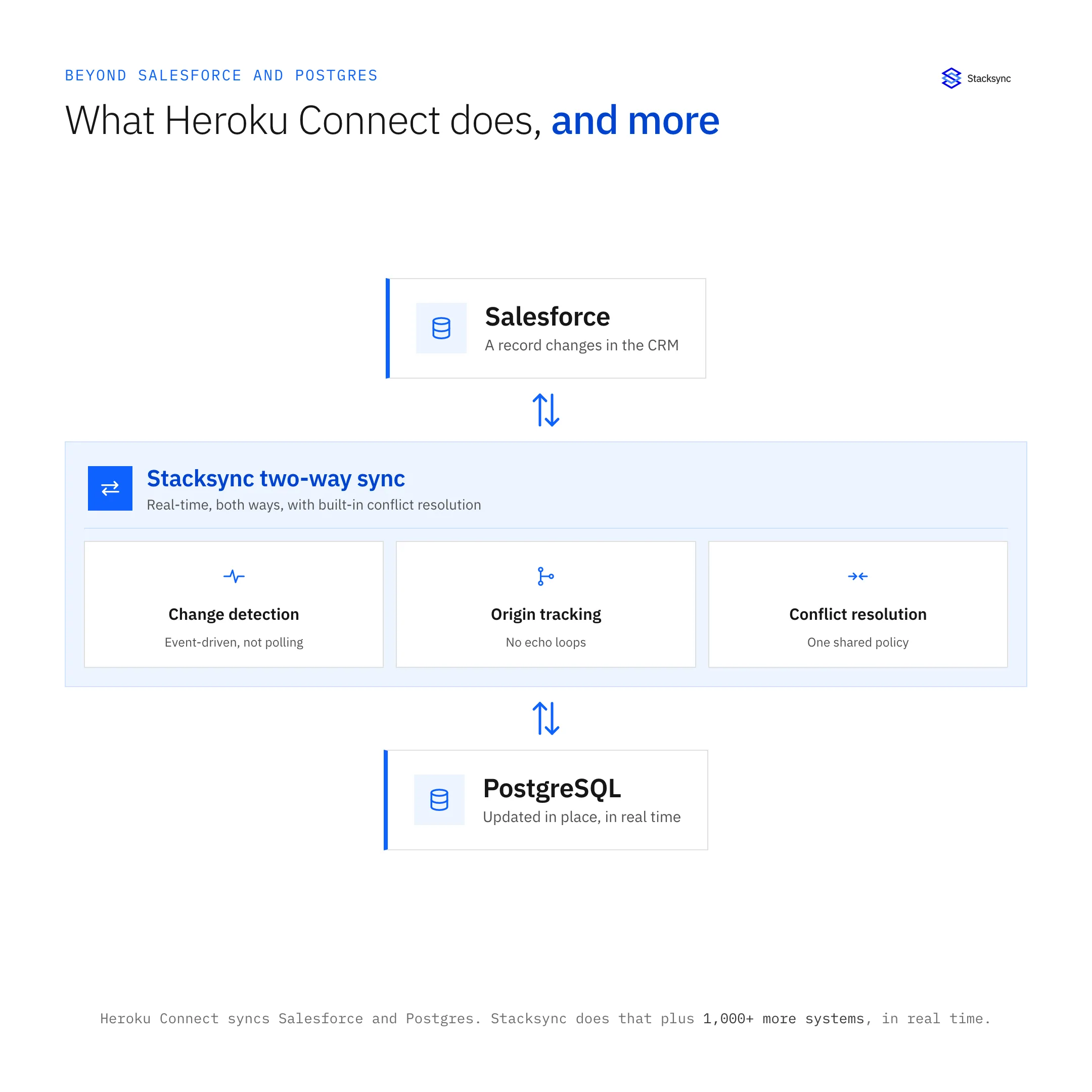
Stacksync addresses the fundamental limitations that make Heroku Connect challenging for growing organizations. While both platforms offer bi-directional synchronization between Salesforce and PostgreSQL, Stacksync delivers superior value through cost transparency, infrastructure flexibility, and built-in automation features that Heroku Connect simply doesn't offer.
Cost Transparency and Predictability
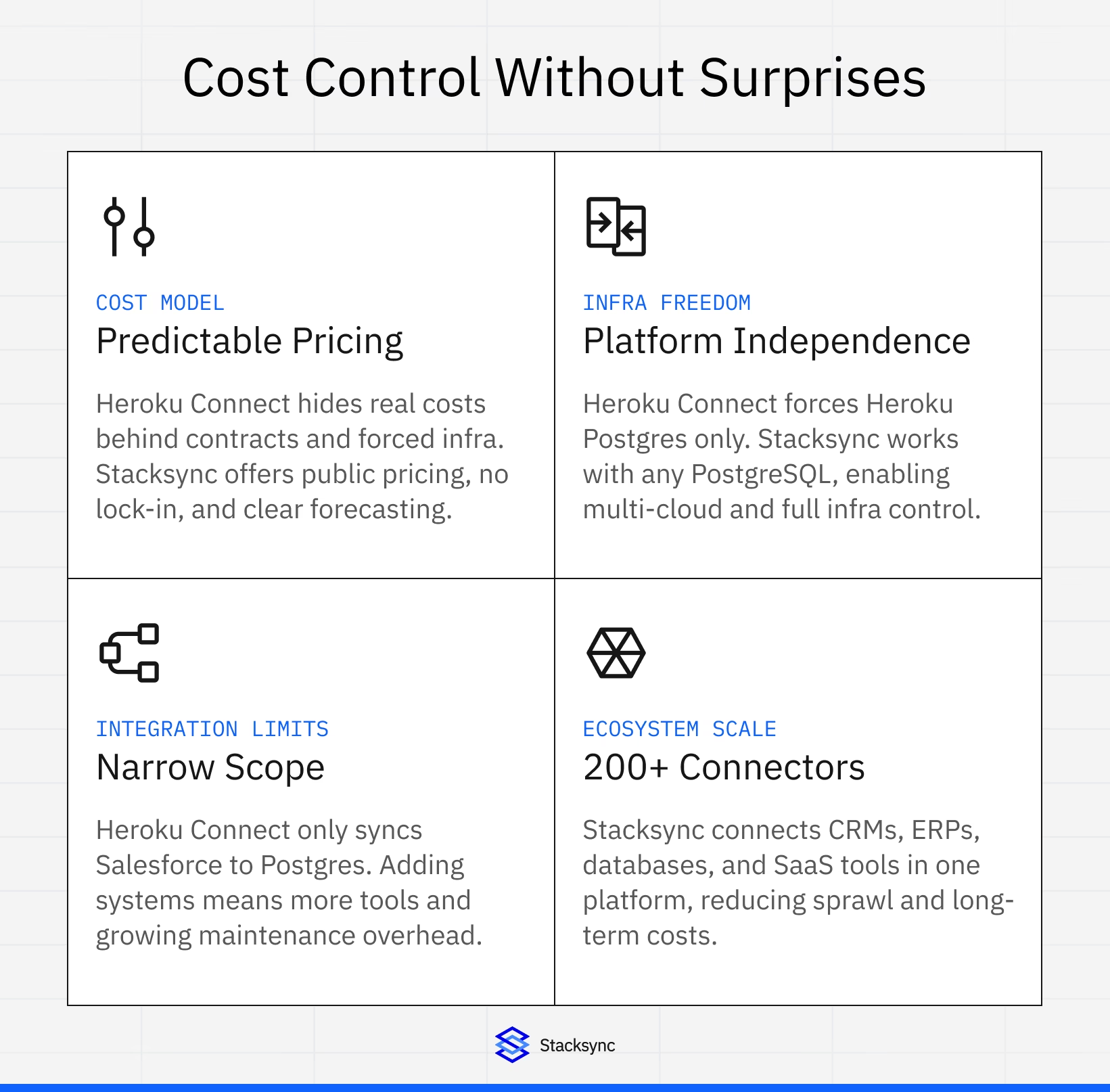
Heroku Connect's pricing model creates significant challenges for budget planning. Production tiers require contract negotiations with no public pricing, making cost estimation nearly impossible without engaging sales teams. On top of that, Heroku Connect mandates expensive Heroku Postgres plans and Heroku Dynos, creating infrastructure dependencies that can triple or quadruple your total costs.
Stacksync's pricing model is transparent and predictable. Organizations pay based on the number of unique synced records, with publicly available tier pricing starting at $1,000 per month. There are no hidden infrastructure requirements, no mandatory platform dependencies, and clear overage rates that allow accurate cost forecasting.
Platform Independence and Flexibility
Heroku Connect creates significant vendor lock-in by requiring Heroku Postgres exclusively. You cannot use AWS RDS, Google Cloud SQL, Supabase, or any other PostgreSQL provider. This limitation restricts architectural flexibility and prevents multi-cloud strategies that modern engineering teams rely on.
As a platform-independent Heroku Connect alternative, Stacksync operates as a cloud-native SaaS platform that connects to any PostgreSQL database, regardless of hosting provider. This flexibility allows organizations to maintain full control over their infrastructure choices while still benefiting from enterprise-grade synchronization.
Connector Ecosystem and Integration Scope
Heroku Connect focuses exclusively on Salesforce-to-PostgreSQL synchronization within the Heroku ecosystem. If you need to integrate additional systems, you're stuck implementing separate solutions, which creates integration sprawl and maintenance overhead.
Stacksync provides over 1,000 pre-built connectors spanning CRMs, ERPs, databases, data warehouses, and SaaS applications. This extensive ecosystem enables organizations to consolidate their entire integration architecture into a single platform, reducing complexity and long-term maintenance costs.
No-Code Setup and Configuration
One of the top reasons teams choose Stacksync as their Heroku Connect alternative is the dramatically faster setup experience. The platform's visual interface enables teams to configure bi-directional synchronization without writing code or hiring specialized consultants.
Visual Configuration Interface
The setup process requires zero coding knowledge. Teams can configure field mappings, sync directions, and transformation rules through an intuitive visual interface. This approach reduces implementation time from weeks or months to hours or days, enabling faster time-to-value compared to Heroku Connect's more complex setup process.
Pre-Built Connectors and Templates
Stacksync's connector library includes pre-configured templates for common integration patterns. These templates handle standard field mappings, data type conversions, and schema differences automatically, further accelerating deployment and reducing the risk of configuration errors.
Real-Time Monitoring and Observability
The platform provides comprehensive monitoring dashboards that track synchronization status, data flow, error rates, and performance metrics in real-time. Teams can identify and resolve issues quickly without requiring deep technical expertise, something that's often a pain point with Heroku Connect's limited observability.
Advanced Filtering and Transformation Capabilities
Stacksync provides sophisticated data filtering and transformation capabilities that go well beyond what Heroku Connect offers, enabling teams to optimize synchronization and reduce unnecessary data movement.
Custom Filter Configuration
Organizations can define complex filter criteria to control exactly which records synchronize between systems. Filters support multiple conditions, logical operators, and field-based criteria, enabling precise control over data flow. This capability reduces synchronization overhead and ensures only relevant data moves between systems.
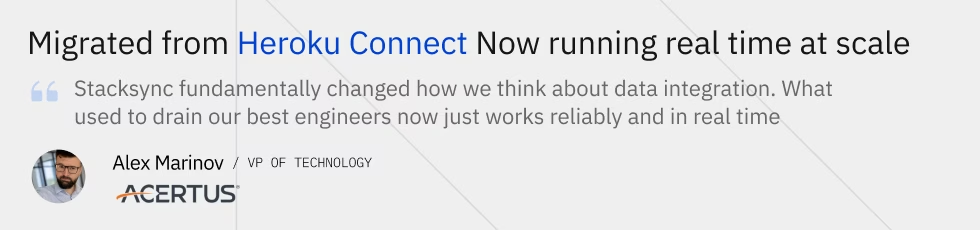
Teams switching from Heroku Connect often cite pricing opacity, platform lock-in, and limited flexibility. Acertus faced the same challenges and now runs real-time sync reliably at scale. Book a demo to see how this approach works in practice.
Data Transformation Rules
The platform supports comprehensive data transformation capabilities, including field mapping, data type conversion, value transformation, and conditional logic. These transformations occur in real-time during synchronization, ensuring data consistency and format compatibility across all connected systems.
Conflict Resolution Strategies
Stacksync provides multiple conflict resolution strategies for handling simultaneous updates across systems. Organizations can configure last-write-wins, source-priority rules, or custom resolution logic based on their specific business requirements. This flexibility ensures data integrity while accommodating different operational workflows.
Event-Driven Workflow Automation
Perhaps the biggest advantage of choosing Stacksync as a Heroku Connect alternative is the built-in event-driven architecture. Teams can build sophisticated automated workflows triggered by data changes, eliminating the need for custom polling mechanisms or complex webhook configurations that Heroku Connect would require you to build from scratch.
Real-Time Change Data Capture
Stacksync provides non-invasive Change Data Capture (CDC) capabilities that detect field-level changes in real-time without requiring database modifications. This approach captures all data mutations, including creates, updates, and deletes, ensuring complete event coverage across your integration architecture.
No-Code Trigger Configuration
Stacksync's visual trigger editor enables teams to configure event triggers without writing code. Triggers can monitor changes in Salesforce, PostgreSQL, or both systems simultaneously, providing comprehensive event coverage that Heroku Connect cannot match natively.
Advanced Event Filtering
Organizations can define complex filter conditions for triggers, enabling precise control over when workflows execute. Triggers can activate only when specific field values change, when records meet certain criteria, or when multiple conditions are satisfied simultaneously.
HTTP Endpoint Integration
Triggers can notify any HTTP REST endpoint, enabling integration with external services, webhook receivers, serverless functions, or automation platforms like Zapier and Make. This flexibility allows organizations to extend Stacksync's capabilities into their existing toolchain without additional vendor lock-in.
Workflow Automation Examples
Common use cases include automatically sending welcome emails when new accounts are created, updating downstream systems when deal stages change, triggering data enrichment processes when leads are qualified, and synchronizing inventory levels across e-commerce platforms in real-time.
Transparent and Scalable Pricing Model
One of the most common reasons teams look for a Heroku Connect alternative is cost. Stacksync's pricing structure provides clear cost predictability that enables organizations to plan budgets accurately and scale efficiently.
| Category | ||
|---|---|---|
| Pricing Transparency | Yes Public, record-based tiers with predictable monthly costs | Contract pricing with limited upfront visibility |
| Platform Flexibility | Yes Compatible with any PostgreSQL host or cloud provider | Restricted to Heroku Postgres infrastructure |
| Integration Scope | Yes 1,000+ connectors across CRMs, ERPs, databases, and SaaS | Primarily Salesforce to Postgres only |
| Setup & Configuration | Yes No-code visual setup completed in hours or days | Longer setup with higher implementation effort |
| Automation & Triggers | Yes Built-in event-driven workflows and real-time triggers | Advanced automation requires custom work |
| Performance | Yes Sub-second, real-time bi-directional sync | Near real-time with scheduled sync intervals |
| Best Fit | Yes Teams scaling beyond Heroku with multi-system needs | Teams fully committed to the Heroku ecosystem |
Key Takeaways
Stacksync combines real-time sync, automation, and transparent pricing without infrastructure lock-in.
Heroku Connect may introduce cost uncertainty and architectural constraints as teams scale.
The choice ultimately depends on long-term flexibility, cost predictability, and integration breadth.
Record-Based Pricing
Stacksync charges based on unique synced records, not update frequency or operation volume. This means organizations can update records unlimited times without additional costs, making it highly cost-effective for high-velocity data environments. Only records present at the start of the month or synced for the first time during the month count toward billing.
Transparent Tier Structure
Stacksync offers publicly available pricing tiers:
- Starter Plan at $1,000 per month includes 50,000 synced records
- Pro Plan at $3,000 per month supports up to 1 million records
- Managed Pro at $4,200 per month support everything in Pro plus a US-based engineering team for all your integration needs.
- Enterprise Plans provide custom pricing with volume discounts for large-scale deployments
Compare this to Heroku Connect, where you need to get on a sales call just to learn what you'll pay. See the full Heroku Connect pricing breakdown.
No Hidden Infrastructure Costs
Unlike Heroku Connect, Stacksync doesn't require mandatory infrastructure components. Organizations can use their existing PostgreSQL databases regardless of hosting provider, eliminating the need for expensive Heroku Postgres plans or Heroku Dynos. This approach significantly reduces total cost of ownership.
Predictable Scaling
Overage charges for records exceeding plan limits follow a tiered structure with volume discounts. Organizations can accurately forecast costs based on data volume, enabling better budget planning and financial predictability as they grow.
Enterprise-Grade Security and Compliance
Stacksync provides enterprise-grade security features and compliance certifications that meet the requirements of regulated industries and security-conscious organizations.
Security Certifications
The platform maintains SOC 2 Type II, GDPR, HIPAA BAA, ISO 27001, and CCPA compliance certifications. These certifications demonstrate Stacksync's commitment to data security and regulatory compliance, enabling organizations in healthcare, finance, and other regulated industries to adopt the platform confidently.
Data Encryption and Access Controls
All data in transit is encrypted using TLS 1.2+, and data at rest encryption is available for sensitive workloads. The platform supports role-based access control (RBAC), multi-factor authentication (MFA), and single sign-on (SSO) for enterprise deployments.
Audit Trails and Compliance Reporting
Stacksync maintains comprehensive audit logs that track all data access, configuration changes, and synchronization activities. These logs support compliance requirements and enable organizations to demonstrate data handling practices during audits.

Performance and Reliability
Stacksync's architecture is designed for high-performance, reliable data synchronization that supports mission-critical business operations.

Real-Time Synchronization Performance
The platform syncs changes in real time for most operations, so data changes propagate quickly across connected systems. This performance level supports real-time business processes that depend on current data availability.
High Availability and Reliability
Stacksync's cloud-native architecture includes built-in redundancy, automatic failover, and disaster recovery capabilities. The platform maintains high uptime SLAs for enterprise customers, ensuring that critical data synchronization continues operating even during infrastructure issues.
Scalability and Throughput
The platform scales horizontally to handle increasing data volumes and synchronization frequencies. Organizations can grow from thousands to millions of synced records without performance degradation or architectural changes.
Migrating from Heroku Connect to Stacksync
Moving off Heroku Connect runs as a parallel sync into a second Postgres schema, a reconciliation of the two, and a schema swap during a short write freeze, so your app keeps its salesforce schema, sfid and __c columns. The Heroku Connect migration guide covers the mappings, the settings to lock before the backfill and the full cutover runbook.
Make the Switch to the Best Heroku Connect Alternative
Stacksync delivers superior value compared to Heroku Connect through transparent pricing, platform independence, advanced automation capabilities, and comprehensive connector support. Organizations choosing Stacksync as their Heroku Connect alternative gain enterprise-grade synchronization capabilities without vendor lock-in, hidden costs, or infrastructure dependencies.
The platform's no-code configuration, real-time performance, and extensive automation features enable teams to build sophisticated integration architectures quickly and maintain them efficiently. Whether you're evaluating integration solutions for the first time or actively searching for a Heroku Connect alternative, Stacksync provides a compelling combination of capabilities, flexibility, and value.
Ready to eliminate Heroku Connect's limitations and infrastructure dependencies? Book a Stacksync demo to see how transparent pricing, platform independence, and advanced workflow automation can transform your Salesforce-PostgreSQL integration strategy.

FAQ
Frequently asked questions









Related articles