


















Salesforce API Limits: Check Usage and Plan Reliable Sync
Check Salesforce API limits, diagnose REQUEST_LIMIT_EXCEEDED, compare Bulk API limits, and budget a reliable sync with configurable API rate controls.
- Author
- Ruben Burdin · Founder & CEO
- Published
- Updated
- Read time
- 7 min read
Salesforce API limits: the practical answer
Salesforce API limits belong to the organization and the API you use. Check your org’s current allocation, separate daily consumption from concurrency and Bulk API limits, then reduce unnecessary calls and reserve capacity for business-critical workflows. Stacksync provides configurable API rate controls and batching; it does not exempt an integration from Salesforce limits.
This guide covers Salesforce Platform integrations, including Sales Cloud and Service Cloud data. Commerce Cloud APIs and Apex outbound callouts have their own limits; do not apply a Platform API allowance to those workloads. Salesforce’s API allocation reference defines the scope.
For an existing incident, start with the usage check below. For a new CRM-to-database or CRM-to-ERP integration, use the capacity worksheet and recovery tests before enabling production writes.
How to check Salesforce API usage and remaining capacity
In Salesforce Setup, open Company Information and find API Requests, Last 24, or check System Overview. Daily usage follows a rolling 24-hour window. It does not reset for everyone at midnight. Configure API Usage Notifications for thresholds your operations team can act on. Salesforce’s monitoring guide shows these controls.
For a programmatic check, call the REST Limits resource using your instance URL, an API version supported by your integration, and an authorized token. The API user needs View Setup and Configuration. The following is an HTTP request template, not a complete authenticated client:
GET /services/data/vXX.X/limits/ HTTP/1.1
Host: YOUR_DOMAIN.my.salesforce.com
Authorization: Bearer YOUR_ACCESS_TOKEN
Read DailyApiRequests.Max and DailyApiRequests.Remaining. Record the observation time alongside both values. The resource can lag consumption by up to five minutes, so rapid repeated checks are not an exact live counter. It also exposes separate Bulk batch and Bulk 2.0 query allocations. REST Limits resource reference.
Monitor the remaining capacity together with the age of your oldest pending change. A low request rate can look healthy while a queue falls hours behind the business process. Assign one person to approve postponing noncritical work when the shared budget tightens.
Daily, concurrent, and Bulk API limits are different
| Constraint | What it means | What to do |
|---|---|---|
| Daily API requests | A shared org allocation across counted API calls in the preceding 24 hours. | Read the actual org limit; include every integration in the budget. |
| Long-running concurrent requests | For calls lasting at least 20 seconds: 25 in production/sandboxes, 5 in Developer Edition/trial orgs. | Reduce concurrent slow work and investigate request duration. |
| Bulk batches | 15,000 batches per rolling 24 hours shared across Bulk API and Bulk API 2.0. Only Bulk 2.0 ingest jobs consume batches; its query jobs do not. | Track the correct allocation; do not equate one record with one batch. |
| Bulk 2.0 query jobs | 10,000 query jobs per rolling 24 hours. | Check DailyBulkV2QueryJobs separately from ingest. |
The concurrency figures come from Salesforce’s request limits; the batch and query figures come from its Bulk API limits. These are different constraints, so adding workers is not a general fix for exhausted capacity.
For example, an Enterprise Edition org with 50 Salesforce licenses and no API add-ons has a published allocation of 150,000 calls: 100,000 + (50 × 1,000). Other license types contribute different amounts. Use your org’s reported limit for planning, not a universal per-user formula. Check edition and license allocations.
For large transfers, Salesforce identifies operations above 2,000 records as candidates for Bulk API 2.0. It creates ingest batches automatically; Bulk API 1.0 requires you to create them. Bulk 2.0 accepts up to 150 MB of base64-encoded ingest content per job, with Salesforce recommending an upload of no more than 100 MB to allow for expansion. See the version-specific limits.
What to do about REQUEST_LIMIT_EXCEEDED
A paid active org’s daily API allocation is a soft limit: Salesforce may temporarily accept an overage, then block further requests with HTTP 403 and REQUEST_LIMIT_EXCEEDED to protect the service. Do not treat that temporary allowance as production capacity. The monthly API entitlement is a separate 30-day usage measure with no enforcement against that entitlement itself. Salesforce explains daily enforcement and monthly entitlement.
- Identify the constraint. Keep the error response, endpoint, request time, and current usage. A concurrency failure needs a different response from an exhausted daily allowance.
- Reduce pressure. Pause discretionary exports, unnecessary polling, and repeated failures. Give the workflow owner a current estimate of delayed records.
- Repair the cause. If records are being recopied unnecessarily, use an incremental design. Review row-by-row imports for an appropriate Bulk API path. Salesforce’s incident guidance recommends both changes.
- Resume under observation. When capacity permits, drain a bounded workload and compare source and destination records. Preserve record identity so repeating a delivery does not create another customer or transaction.
If the ongoing workload still exceeds the purchased allowance, take measured usage and growth estimates to your Salesforce account team. More licenses or API capacity may be necessary. A retry loop cannot create additional entitlement. Salesforce’s allocation guidance.

Budget steady-state sync, initial load, and recovery separately
Build a request budget from measurements of your own workflow. Record calls used by ordinary changes, initial imports, reconciliation jobs, and other applications sharing the org. Reserve headroom for bursts and recovery. Then agree which work can wait when capacity becomes scarce.
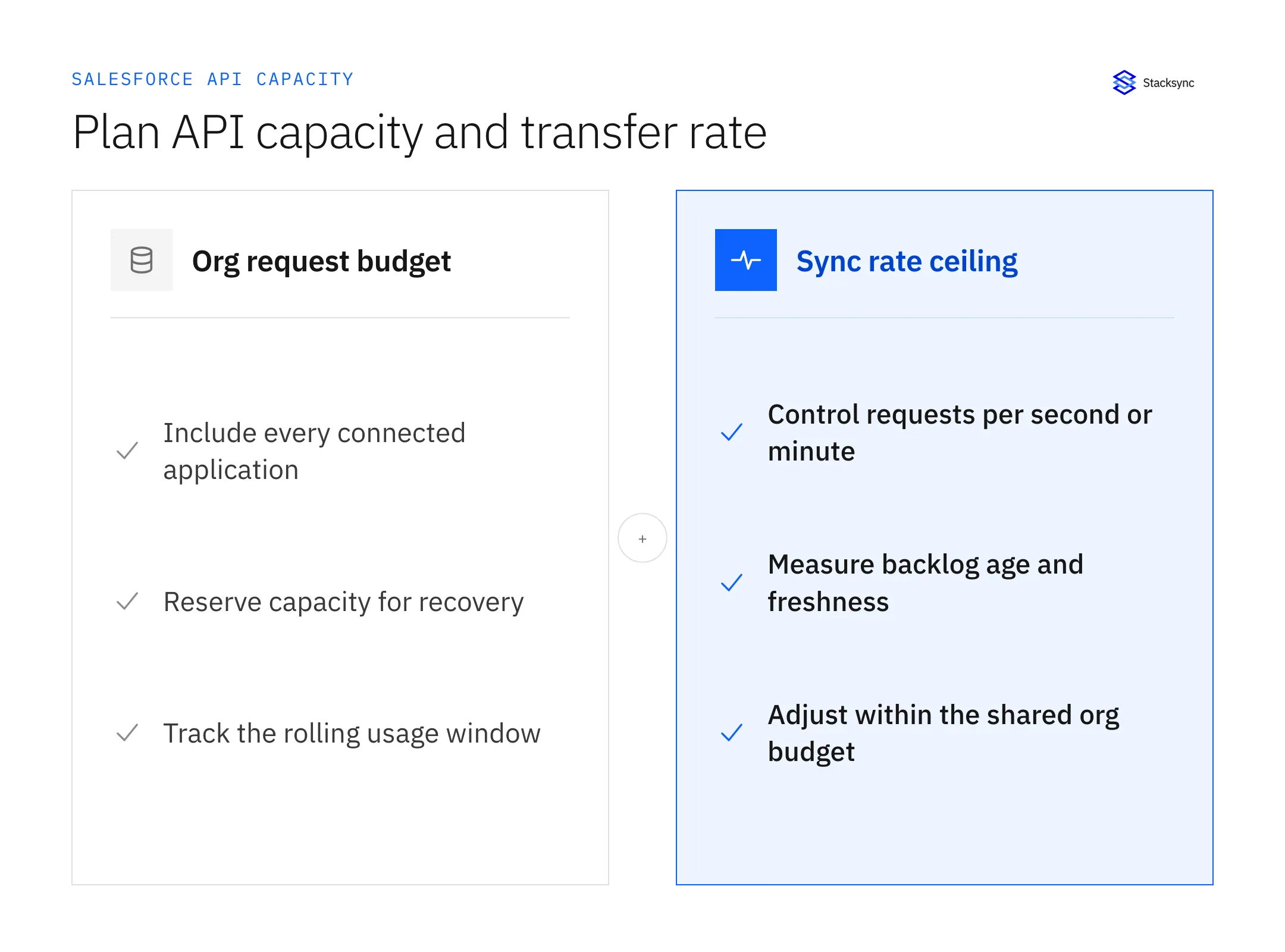
Illustrative calculation: suppose your org reports 150,000 calls, you reserve 30,000 for headroom, and other integrations use 80,000. That leaves 40,000 calls for the planned workload across that window. A ceiling of 5 requests per second could consume 432,000 calls if sustained for 24 hours. A rate ceiling therefore cannot replace an org-wide request budget.
- Initial load: estimate selected records, batch sizes, related objects, and job/result requests. Include changes that arrive while the load runs.
- Ongoing sync: measure peak changes and calls per completed business update, including relationship reads and validation failures.
- Recovery: test how long a backlog takes to drain while new changes continue arriving. Record acceptable data age, not just successful request counts.
Use the field-mapping workbook to define the actual objects and fields before estimating volume. A contact update and a posted invoice are different workloads, with different dependencies and consequences.
How Stacksync helps manage Salesforce API consumption
Stacksync documents per-app API rate controls and batching of record changes to reduce API requests. To configure a ceiling, open a sync, select the app, change its rate settings, and save. The documentation recommends short windows such as seconds or minutes for a steadier transfer rate; changes can take up to a minute to apply. Stacksync API Rate Limit Management.
The setting is a maximum when work is available, not a promise to consume that many calls continuously. Some tables still use polling when idle. Choose the rate from your measured org budget and required data freshness, then check Salesforce usage after changing it. Read the documented rate-control behavior.
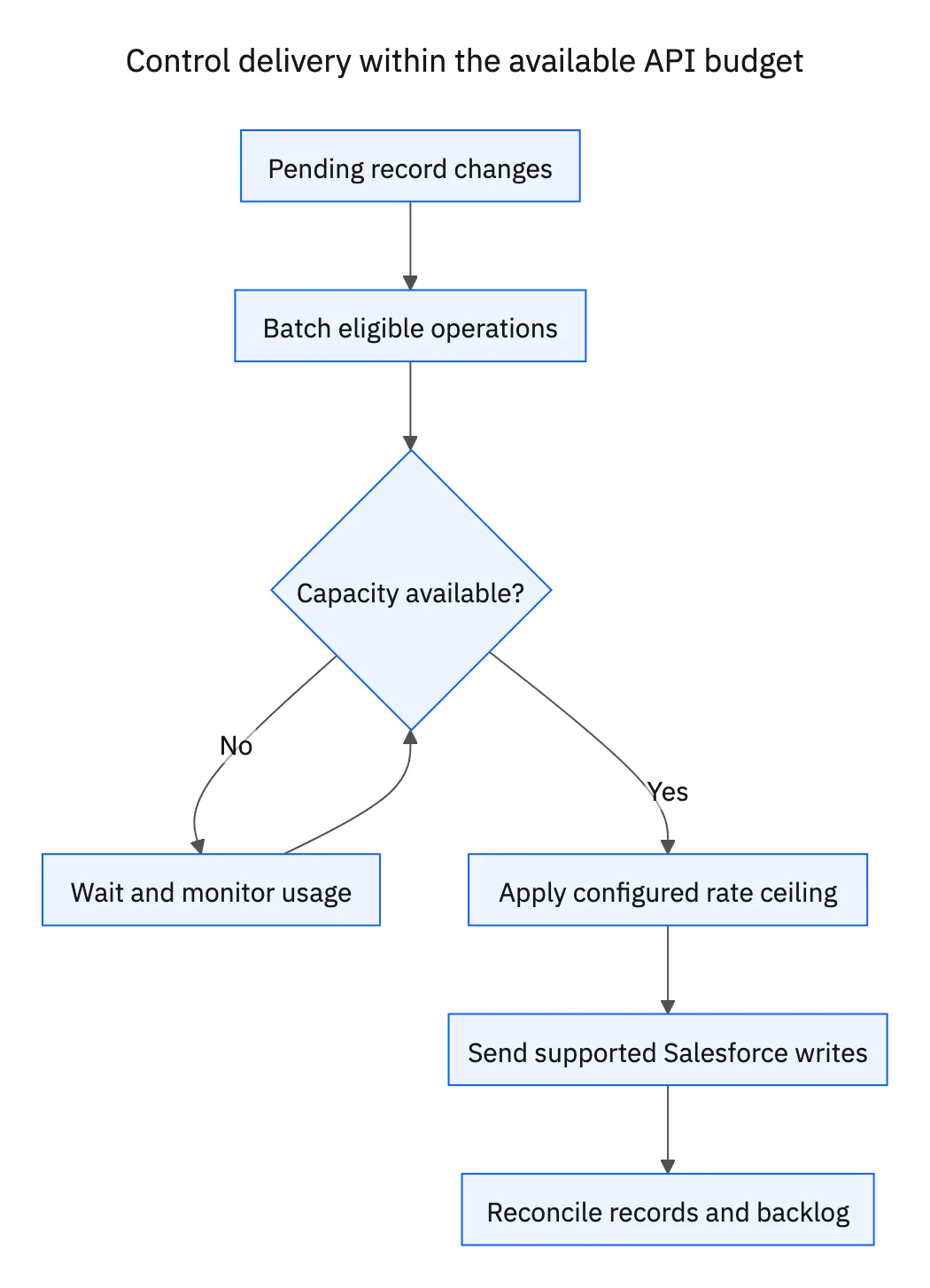
The operational goal is a controlled transfer with visible exceptions. During an evaluation, bring one supported Salesforce object, its related records, expected change volume, and a failure case. Ask the engineer to show the configured capture method, destination mapping, API usage during a representative run, and the recovery result.
Start with the Salesforce connector’s object and connection requirements. For a two-CRM workflow, review the HubSpot–Salesforce integration. Use the production-readiness checklist to record acceptance evidence.
Review your Salesforce sync architecture with an engineer. Bring your org allocation, observed daily usage, peak record changes, and required destination; the discussion can then focus on a concrete capacity and recovery plan.
FAQ
Frequently asked questions










Explore these integrations and topics
- connectorSalesforce integrations
- platformIntegration architecture
- platformCRM synchronization
- Two-way sync guidesUnderstand two-way sync, record matching, field ownership, and production readiness.
- CRM synchronization guidesConnect customer records across sales, marketing, and operational systems.
- Integration architecture guidesEvaluate integration methods and design for conflicts, retries, failures, and changing schemas.
Related articles